
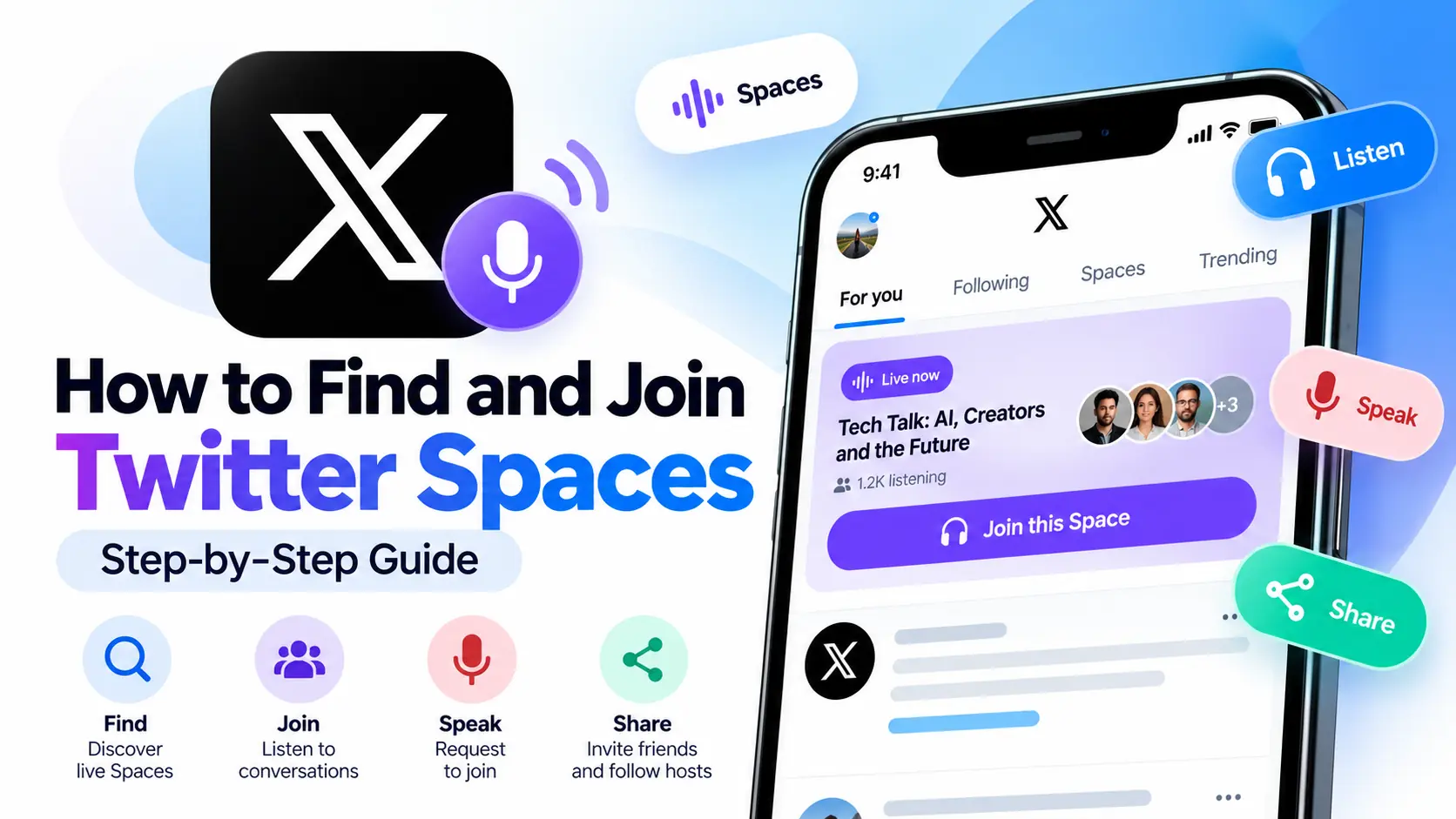
Twitter Spaces changed how people have conversations on social media. Instead of reading posts and replying with text, users can join live audio discussions, listen to experts, ask questions, and hear different perspectives in real time. Whether the topic is breaking news, technology, entertainment, business, or everyday life, Spaces offers a way to participate in conversations without appearing on camera.
Although Twitter is now known as X, many people still search for terms such as Twitter Spaces, how to find Twitter Spaces, and how to join Twitter Spaces. If you’re one of them, this guide will walk you through the process, explain how to discover interesting conversations, and show you what to do if you want to speak instead of just listening.
You don’t need to be an experienced X user to get started. Once you know where to look and which buttons to tap, finding and joining a Space becomes much easier.
What Are Twitter Spaces?
Twitter Spaces, now called X Spaces, is a feature for hosting and participating in live audio conversations on X. Think of it as a live discussion room where a host invites people to speak while other participants listen.
Unlike a traditional post, which people read and respond to at different times, a live Space brings participants together for a conversation happening right now.
For example, a technology creator might host a discussion about artificial intelligence, a journalist might answer questions about a developing story, or a group of cricket fans might discuss a match while it’s happening.
Spaces can be small, informal conversations or large public discussions with many listeners. Hosts decide who can speak and can manage participants during the conversation.
Here are some things you can do with X Spaces:
- Listen to live audio discussions.
- Discover conversations about subjects you care about.
- Follow speakers and hosts whose discussions interest you.
- Request permission to speak during a live Space.
- React to conversations using available emoji reactions.
- Share a Space with friends or followers.
- Listen to recorded Spaces when a recording is available.
According to the official X Spaces Help Center, people can join public Spaces even when they don’t follow the host. The feature is designed to make live conversations easier to discover and participate in.
How to Find Twitter Spaces on X
There isn’t just one way to discover a Space. Depending on the app version, device, and features available to your account, you may find live conversations through your timeline, a host’s profile, shared links, or the Spaces discovery interface.
Let’s look at the most practical methods.
Method 1: Find Twitter Spaces on Your Home Timeline
This is usually the easiest place to start if you already use the X app.
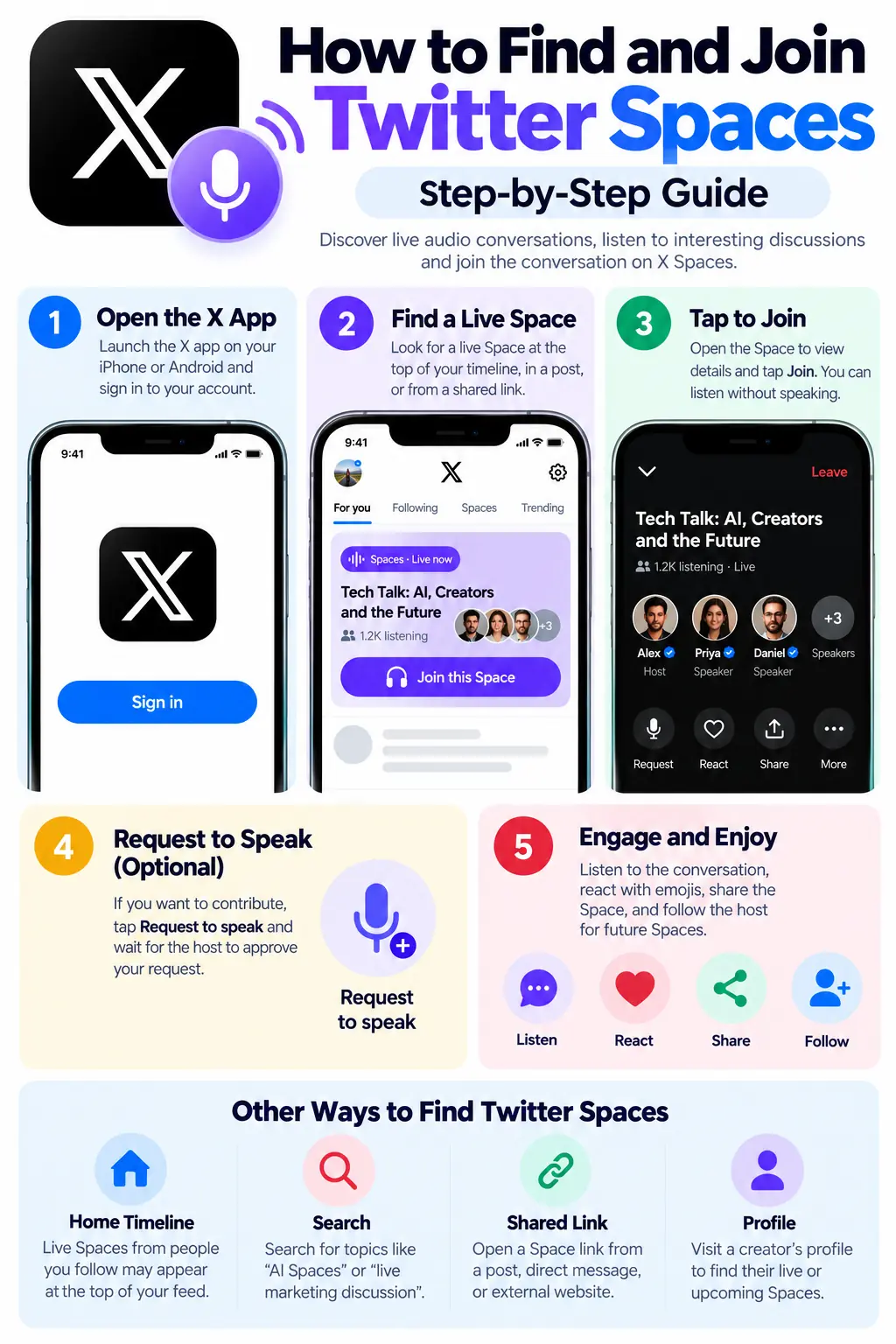
Step 1: Open the X app.
Launch X on your Android phone or iPhone and sign in to your account if necessary.
Step 2: Check the top of your timeline.
When people you follow are hosting or participating in live Spaces, you may see a highlighted Space near the top of your Home timeline. Live Spaces have traditionally been indicated by a purple visual highlight.
The exact appearance and placement can change as X updates its interface.
Step 3: Look at the host and topic.
Before joining, check who is hosting the discussion and whether the subject interests you. A Space might focus on news, technology, sports, business, entertainment, or another topic.
Step 4: Tap the Space.
Select the live Space to open its details or enter the conversation.
You can join as a listener without requesting permission to speak. If you later want to contribute, you can request speaker access when the host’s controls allow it.
Tip: If you don’t see any live Spaces, don’t assume the feature is unavailable. The people you follow may not be hosting anything at that moment. Try another discovery method.
Method 2: Find Twitter Spaces Through a Post
Hosts often promote their upcoming or live Spaces by sharing a post on X. This is particularly common when a creator is organizing an interview, discussion, community event, or question-and-answer session.
Here’s how to use this method:
- Open X and browse your timeline.
- Look for a post announcing a live or scheduled Space.
- Read the post to identify the topic, host, and start time.
- Tap the Space card or link included in the post.
- If the Space is live, follow the on-screen instructions to join.
You may also discover these announcements when someone reposts a host’s post or shares the link in a conversation.
If a Space is scheduled for later, check whether the post offers a reminder option. Depending on the available controls, you may be able to request a notification when the host starts the event.
Method 3: Find a Space Through Someone’s Profile
You can also discover Spaces by visiting the profile of a creator, journalist, business, or other account you follow.
Open the account’s profile and look for an active Space or a post promoting an upcoming discussion. If the person is currently hosting or speaking in a Space, X may display a relevant indicator or link.
Tap the available Space entry to view its details and join if it is live.
Keep in mind that not every profile will display an active Space. The person may not be participating in one, or the interface may not show it in the same way on every device.
Method 4: Join a Twitter Space Using a Direct Link
This is one of the simplest ways to access a particular conversation.
Suppose a friend sends you a link to an X Space about Google Search, digital marketing, or a current news story. You don’t have to find the host manually.
Follow these steps:
- Open the link shared with you.
- Let it open in the X app or a supported web browser.
- Review the Space’s title and host information.
- Select the option to join or listen, if available.
- Adjust your volume and start listening.
Space links can be shared through X posts, direct messages, and other platforms.
If the link doesn’t open correctly, try opening it directly in the X app or copying it into a browser. Also check whether the event has already ended or whether the link points to a scheduled Space rather than a live one.
How to Join Twitter Spaces on Android
If you’re using an Android phone, you can join a Space directly from the X app.
Follow this step-by-step process.
Step 1: Open X on your Android phone.
Make sure the app is updated and that your internet connection is working.
Step 2: Find a live Space.
Look for a live conversation in your timeline, open a shared Space link, or visit an account that is hosting a discussion.
Step 3: Tap the Space.
The Space opens and displays information about the host, speakers, and conversation.
Step 4: Join as a listener.
Choose the available option to join or start listening. You can listen without requesting permission to speak.
Step 5: Explore the available controls.
Depending on the Space and app version, you may be able to view participants, react with emojis, read captions, or request permission to speak.
Step 6: Leave when you’re finished.
Use the leave or exit control to return to your timeline.
You don’t need to turn on your camera to join a Space. The format is audio-based, so you can listen while keeping your camera off.
How to Join Twitter Spaces on iPhone
The process on an iPhone is very similar to Android.
- Open the X app on your iPhone.
- Find a live Space in your timeline or open an invitation link.
- Tap the Space to see its details.
- Join the conversation as a listener.
- Use the available controls to react, view participants, or request to speak.
- Leave the Space whenever you want.
If you cannot find the Spaces feature, check whether the app is updated and try opening a direct Space link.
X occasionally changes the layout of its app, so a button may appear in a different location than it does in an older tutorial.
For official instructions, consult About X Spaces.
Can You Join Twitter Spaces on a Computer?
Yes. X supports listening to Spaces on the web, although creating and hosting a Space is currently supported through the iOS and Android apps rather than the web version, according to X’s Help Center.
To listen on a computer:
- Open a browser and visit X.com.
- Sign in if needed.
- Find a post or link that points to a live Space.
- Open the Space and follow the available listening controls.
- Adjust your computer’s volume and listen through your speakers or headphones.
You can also open a Space link someone shares with you.
If you cannot access a particular Space, check whether the event is still live and whether your browser is supported. You can also try opening the link in the X mobile app.
One important distinction: listening on the web does not necessarily mean that every mobile feature will be available in the browser. Speaker requests, hosting controls, and other interactions may differ.
How to Speak in a Twitter Space
Joining a Space as a listener doesn’t automatically make you a speaker. The host controls who can use the microphone.
If you want to contribute to the conversation, follow these steps:
1. Join the live Space.
Enter the discussion and listen for a moment so you understand its topic and tone.
2. Find the request-to-speak control.
Look for the button or microphone-related control that lets listeners request speaker access. Its appearance may vary by app version and Space settings.
3. Send your request.
Tap the request option and wait for the host or an authorized co-host to respond.
4. Wait for approval.
The host may approve or decline your request. A request does not guarantee that you’ll be allowed to speak.
5. Check your microphone.
If approved, follow the prompts to enable microphone access and unmute yourself when you’re ready to talk.
6. Keep your contribution relevant.
Introduce yourself briefly if appropriate, speak clearly, and give other participants a chance to contribute.
Remember that a Space is a public conversation. Other participants may be able to see your account and your participation, so consider that before requesting the microphone.
How to Find Twitter Spaces About Specific Topics
Finding a random live Space is easy enough, but discovering a useful discussion on a particular subject takes a little more effort.
Here are several practical ways to narrow your search.
Search for relevant keywords
Use X’s search function to look for phrases connected to your interests. You could try searches such as:
AI SpacesSEO discussionlive marketing conversationcricket discussiontechnology Space
These are examples of search phrases, not guaranteed commands or special search operators. Results will depend on what people have posted and how X currently organizes search.
Look for posts containing Space links, announcements, or information about upcoming discussions.
Follow people who host useful conversations
If you discover a knowledgeable host, consider following the account. Hosts sometimes schedule regular discussions, interview guests, or invite their audience to participate.
Over time, following relevant accounts can make it easier to discover conversations that match your interests.
Watch for announcements
Many hosts announce their Spaces in advance. They may share the topic, guest names, schedule, and instructions for joining.
If the subject matters to you, save the post or use any available reminder feature so you don’t forget the event.
Ask your network for recommendations
You can also ask people you follow whether they know of useful Spaces about a particular topic. A direct recommendation may lead you to discussions that aren’t immediately visible in your timeline.
The best method depends on what you’re looking for. A popular live Space may be entertaining, but a smaller discussion with knowledgeable participants could be more useful.
Do You Need an X Account to Join Twitter Spaces?
You should distinguish between opening a Space link and participating fully in the conversation.
X’s Spaces documentation describes Spaces as public and allows people to join as listeners, including people who don’t follow the host. However, the exact access requirements and available interactions can depend on the way you’re opening the Space and the current product experience.
If you’re asked to sign in, follow the instructions displayed by X. Some account-related features, such as requesting to speak, interacting with other participants, or hosting your own Space, may require you to be signed in.
Do not assume that every Space link will work without an account on every device. If you want reliable access to the full range of features, using the official X app while signed in is the most straightforward approach.
Are Twitter Spaces Public?
Yes. X describes Spaces as public conversations, meaning people may be able to find and join them even if they don’t follow the host.
This has an important privacy implication: your presence and activity in a Space may be visible to others. Joining a public discussion should not be treated like entering a private voice call with friends.
Before participating, consider the following:
- Your X profile may be visible to other participants.
- Other people may see that you’re in the Space, depending on the product experience.
- If you speak, people in the Space can hear your voice.
- If the host records the Space, the audio may remain available after the live conversation ends.
If you prefer to listen without speaking, you can remain a listener. If privacy is a concern, review X’s current guidance and the controls available in the Space before joining.
What Happens When a Twitter Space Ends?
A live Space usually ends when its host ends the conversation. Once it has ended, you can no longer participate in that live session.
However, the conversation may remain available if the host enabled recording and has kept the recording accessible.
Recorded Spaces can allow people who missed the live event to listen later. Depending on the available features, hosts may share recordings or clips so others can discover key moments from the conversation.
Not every Space will have a recording. If you want to listen later, check the host’s profile or look for a post linking to a replay.
For more information about recordings, sharing, and host controls, visit the official X guide to hosting a Space.
Common Problems When Joining Twitter Spaces
Sometimes a Space doesn’t appear, a link fails to open, or the audio doesn’t work as expected. Try these troubleshooting steps before giving up.
A Space isn’t appearing in your timeline
The people you follow may not be hosting or speaking in a live Space at that moment. Try opening a link shared by someone else, checking the host’s profile, or searching for posts announcing Spaces.
You can also restart the app and check for updates.
The Space link doesn’t work
The event may have ended, the link may be incorrect, or the browser may not be opening it properly.
Try copying the link into a browser, opening it in the X app, or asking the person who shared it to send the link again.
You can’t hear the speakers
Check your device’s volume, Bluetooth connection, and audio output. If you’re using headphones, confirm that they’re connected to the correct device.
You can also leave and rejoin the Space to see whether the problem clears.
You can’t request to speak
The host may not be accepting speaker requests, or the feature may be unavailable in your current view. Check the controls displayed in the Space and wait for the host to invite speakers if appropriate.
The app keeps crashing
Close and reopen X, check for an app update, and restart your phone if necessary. If the problem continues, consult the X Help Center for further troubleshooting guidance.
Tips for Getting More Out of Twitter Spaces
Once you’ve learned how to join, a few simple habits can make your experience better.
Choose discussions carefully. Read the title and host information before joining. A clear topic helps you decide whether the conversation is worth your time.
Listen before speaking. Spend a little time understanding the discussion before requesting the microphone. This helps you contribute something relevant.
Use headphones when possible. Headphones can make speech easier to hear, especially in noisy environments.
Check the schedule. If a host announces a future Space, look for available reminder options or save the announcement.
Respect other participants. Avoid interrupting, keep comments relevant, and follow the host’s instructions.
Be mindful of privacy. Spaces are public, and recordings may be available after a session. Avoid sharing personal information you would not want others to hear.
Follow useful hosts. If someone regularly shares accurate, thoughtful, or entertaining discussions, following them can make it easier to discover future Spaces.
Frequently Asked Questions
Is Twitter Spaces the same as X Spaces?
Yes. Twitter was rebranded as X, and Twitter Spaces is now commonly called X Spaces. Many users still use the older name when searching for instructions.
Can I join a Twitter Space without following the host?
Yes. Spaces are public, and X says people can join as listeners without following the host. The exact access flow may depend on your device and current X interface.
Can I listen to Twitter Spaces without speaking?
Absolutely. You can join as a listener and hear the discussion without requesting permission to speak.
Can I join Twitter Spaces on a PC?
Yes, you can listen to Spaces on the web. X’s current Help Center says hosting a Space is supported on its iOS and Android apps, not on the web version.
How do I find live Twitter Spaces?
Check the top of your timeline for live Spaces, open links shared in posts or direct messages, visit profiles of hosts, or search X for announcements about upcoming discussions.
Can I speak in a Twitter Space?
Yes, if the host allows it. Join the Space, request speaker access using the available control, and wait for approval. If approved, enable your microphone and unmute yourself when you’re ready.
Are Twitter Spaces recorded automatically?
Not necessarily. Hosts can choose to record a Space where the recording feature is available. If a recording is kept and shared, people may be able to listen after the live session ends.
Can I join a Twitter Space after it ends?
You cannot join an ended Space as a live participant. If the host recorded it and the replay remains available, you may be able to listen to the recording instead.
Conclusion
Learning how to find and join Twitter Spaces is straightforward once you know where to look. Start with your X timeline, check posts from people who host discussions, or open a direct Space link shared by a friend or creator.
You can join a live conversation as a listener, explore the available controls, and request permission to speak if you want to participate. You can also listen on the web, although some features are available only through the mobile apps.
The most useful part of Spaces isn’t simply joining a live audio room. It’s finding conversations that help you learn something, hear different perspectives, or connect with people who share your interests.
Start with a topic you care about, explore a few discussions, and follow hosts whose conversations you find valuable.
Helpful Sources
For official instructions and the latest feature details, consult these resources:
- About X Spaces — X Help Center: Learn how Spaces work, how to join, and which features are available.
- How to Host a Space — X Help Center: Details on creating, scheduling, recording, and moderating Spaces.
- X Spaces for Business: An overview of live audio conversations and ways to engage an audience on X.
you may also like to read,