
Facebook Messenger makes it easy to chat with friends, share photos, send voice messages, and make voice or video calls. But what happens when the app stops working as expected? Perhaps your messages are not sending, notifications are missing, calls keep disconnecting, or Messenger crashes whenever you open a conversation.
When basic troubleshooting does not solve the problem, you can report the issue to Meta so the company can investigate it.
The good news is that you do not need to be a technical expert to report a Messenger problem. You simply need to describe what is happening, explain when it started, and provide enough details to help the support team understand the issue.
In this guide, you will learn how to report a problem on Facebook Messenger using Android, iPhone, iPad, and a computer. You will also discover how to report inappropriate messages, what information to include in a bug report, and what to do if the reporting option is missing from your app.
How to Report a Problem on Facebook Messenger
The quickest approach is to open Messenger’s settings or profile menu and look for an option such as Report a Problem. The exact wording and location can vary depending on your device and the version of Messenger you are using.
Before submitting a report, update Messenger if possible and check whether your internet connection is working properly.
Here is the general process:
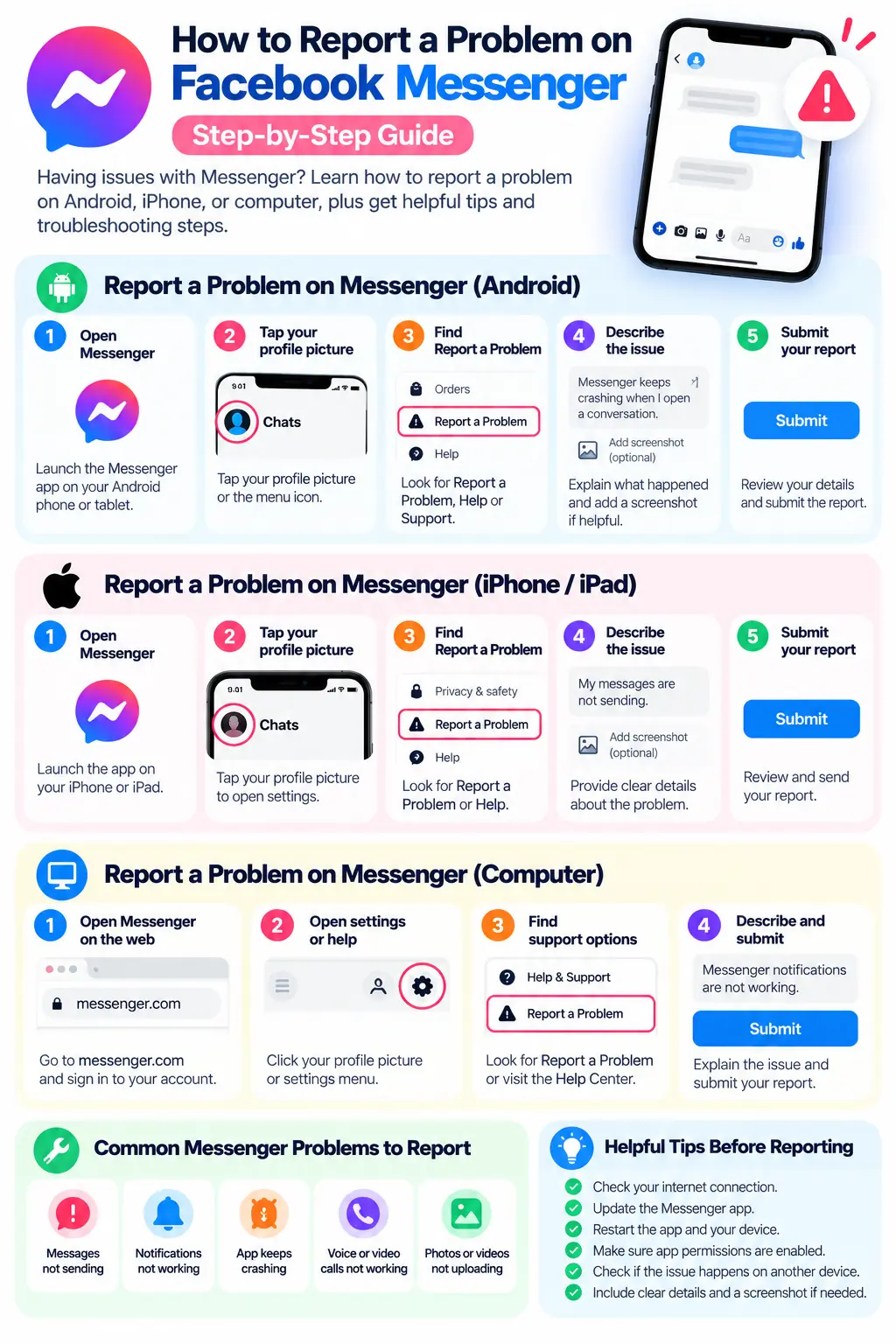
- Open the Messenger app.
- Tap your profile picture or open the app’s settings.
- Look for Help, Support, or Report a Problem.
- Select the relevant reporting option, if available.
- Describe the issue and explain the steps that caused it.
- Attach a screenshot if it helps explain the problem and does not expose private information.
- Submit the report and follow any confirmation instructions.
If you cannot find the option in your version of Messenger, visit the official Messenger Help Center and search for the specific problem you are experiencing.
How to Report a Problem on Messenger for Android
If you use Messenger on an Android phone or tablet, follow these steps to look for the technical reporting option.
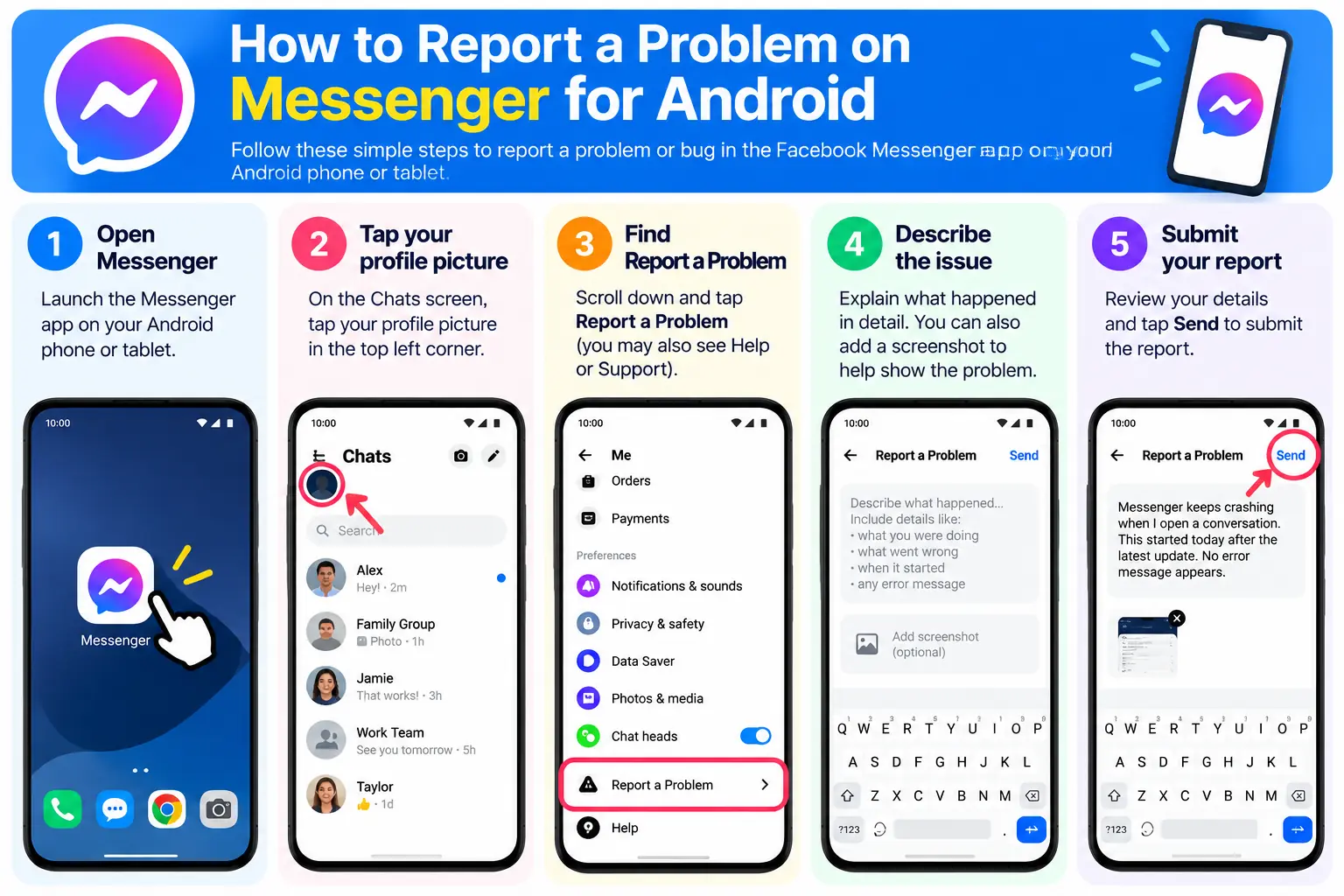
Step 1: Open the Messenger app
Find Messenger on your Android device and open it.
Make sure you are signed in to the account where the problem is occurring. If Messenger crashes immediately, try updating the app or restarting your phone before attempting to submit a report.
Step 2: Open your profile or settings
From the Chats screen, tap your profile picture or the settings entry available in your version of Messenger.
The interface may look different after an update, so do not worry if the icons are not exactly where they appear in an older tutorial.
Step 3: Look for Report a Problem
Browse the available settings for an option labeled Report a Problem, Help, or something similar.
If the technical reporting option is available, open it. If you see only help articles, use those to check whether Meta already has a recommended fix for your issue.
Step 4: Describe what is happening
Explain the problem clearly. For example:
- Messenger closes unexpectedly when I open a conversation.
- My messages remain stuck on sending.
- Notifications do not appear until I open the app.
- Voice calls disconnect after a few seconds.
- Images fail to upload even though my internet connection works.
Be specific about the behavior rather than writing only, “Messenger is not working.”
Step 5: Add a screenshot if useful
A screenshot can help explain an error message or an unexpected screen.
Before attaching it, check that it does not reveal private conversations, phone numbers, payment details, authentication codes, or other sensitive information.
Step 6: Submit your report
Review your description and submit the report using the option shown in the app.
Keep in mind that submitting a technical report does not guarantee an individual reply. Meta may use reports to investigate problems and improve its services.
For official troubleshooting instructions, visit Facebook’s Messenger problem-solving help page.
How to Report a Problem on Messenger for iPhone or iPad
The process on an iPhone or iPad is similar, although the settings menu may look different from the Android version.
Step 1: Open Messenger on your iPhone or iPad
Launch Messenger and check whether the problem occurs in one conversation or throughout the app.
For example, if messages work normally in other chats but fail in one particular conversation, mention that detail in your report.
Step 2: Open the settings menu
Tap your profile picture or the settings option available in your version of Messenger.
Look through the available options for Report a Problem or a relevant help section.
Step 3: Select the appropriate reporting option
If the app provides a technical reporting tool, open it and follow the instructions.
If you cannot find the option, check the Messenger Help Center for the current reporting instructions.
Step 4: Explain the problem
Include the following details where relevant:
- Your iPhone or iPad model.
- Your iOS or iPadOS version.
- Your Messenger app version, if known.
- The approximate time the issue occurred.
- The screen or action that triggered the problem.
- Whether the issue happens every time or only occasionally.
You do not need to include every detail if it is unrelated to the problem. Focus on the information that would help someone reproduce the issue.
Step 5: Submit the report
Review your description, remove any sensitive information from screenshots, and submit the report if the option is available.
If Messenger is not responding at all, you can first restart your device, check for app updates, and try again.
How to Report a Messenger Problem on a Computer
If you use Messenger on a desktop or laptop, you can check the available support options through Messenger on the web or through Facebook.
Option 1: Use Messenger on the web
- Open Messenger in your browser.
- Sign in if necessary.
- Open the settings or help options available in your interface.
- Look for a relevant reporting or support option.
- Describe the problem and submit the report if the option is available.
The available options can differ from those in the mobile app. If you cannot find a technical reporting option, use the official Messenger Help Center to find instructions for your issue.
Option 2: Use Facebook’s Help & Support menu
If you access Messenger through Facebook, you can check Facebook’s support options.
Depending on the current interface, a technical issue may be reported through a Help & Support menu or a Report a Problem option.
- Open Facebook.
- Open your profile or account menu.
- Look for Help & Support.
- Select the relevant problem-reporting option if available.
- Follow the on-screen instructions.
The menu names and available reporting options can change. If you do not see these choices, use Facebook’s official Help Center to find the current process.
What Should You Include in a Messenger Problem Report?
A useful report explains what happened, what you expected to happen, and how the problem can be reproduced.
Imagine that you are reporting a bug to a website developer. Saying “the website is broken” gives the developer very little information. Explaining which page fails and what you clicked makes the issue easier to investigate.
The same principle applies to Messenger.
Use this checklist when preparing your report:
| Information | Example |
|---|---|
| Type of problem | Messages are not sending |
| Device | Android phone or iPhone |
| App version | The version shown in your app information, if available |
| When it started | This morning or after an app update |
| Steps to reproduce | Open a chat, type a message, and tap Send |
| Expected result | The message should be delivered |
| Actual result | The message remains stuck on sending |
| Error message | Include the exact wording, if one appears |
| Screenshot | Attach a relevant screenshot after removing sensitive details |
You do not need to write a long technical explanation. A short, accurate description is often more useful than a lengthy complaint without specific details.
Example of a good Messenger bug report
You can adapt the following example to your situation:
Problem: Messenger messages are not sending.
Device: Android phone.
Description: Since this morning, messages in Messenger remain stuck on sending. I checked my internet connection and restarted the app, but the issue continues. It happens in more than one conversation. No error message appears.
Expected result: Messages should send normally.
Actual result: Messages remain pending and are not delivered.
This report explains the symptoms, the troubleshooting already attempted, and the expected behavior. It gives the support team more useful information than a general statement that Messenger is broken.
Common Facebook Messenger Problems You Can Report
You can report a technical issue when Messenger does not behave as expected. The following examples can help you identify the right category and describe the problem accurately.
1. Messenger messages are not sending
If your messages remain stuck on sending, first check your internet connection and whether the problem affects other apps.
Try switching between Wi-Fi and mobile data. If the issue continues, restart Messenger and check for an available update.
When reporting the issue, mention whether it affects every conversation or only one chat.
2. Messenger notifications are not working
If you receive messages but do not see notifications, check Messenger’s notification settings and your phone’s notification permissions.
Also check whether Do Not Disturb, Focus mode, or battery restrictions are affecting background activity.
If the problem continues after checking these settings, report the behavior and explain whether notifications are missing entirely or simply arriving late.
3. Messenger keeps crashing
An app that closes unexpectedly may have a software bug, compatibility issue, or problem with its local data.
Try updating Messenger and restarting your device. If the app continues to crash, include the action that triggers the crash, such as opening a specific chat or attaching a photo.
If possible, mention whether the problem started after an app or operating-system update.
4. Messenger voice or video calls are not working
Call problems may be caused by an unstable connection, disabled microphone or camera permissions, or a temporary service issue.
Check the permissions for Messenger in your device settings. Try a different network if possible.
If the problem persists, describe whether calls fail to connect, disconnect unexpectedly, or have audio or video problems.
5. Photos and videos are not uploading
If Messenger cannot send a photo or video, check your connection, available device storage, and the file you are trying to share.
Try sending a different image to see whether the issue affects every upload or only one file.
Include that distinction in your report.
6. Messenger is not displaying messages correctly
You might notice messages appearing late, conversations failing to load, or a screen that does not update correctly.
Restart the app and check whether the same issue occurs on another device or through Messenger on the web.
If it continues, describe exactly what is missing or displayed incorrectly.
What to Do Before Reporting a Messenger Problem
Reporting a bug is useful, but a few basic checks may solve the issue more quickly.
Check your internet connection
Open another website or app to confirm that your connection is working.
If you are using Wi-Fi, try reconnecting. If possible, switch to mobile data and check whether Messenger behaves differently.
Update Messenger
Open the Google Play Store or Apple’s App Store and check whether an update is available.
Updates may contain bug fixes, compatibility improvements, and security changes.
Restart Messenger and your device
Close Messenger and reopen it. If the problem remains, restart your phone or computer.
A restart will not fix every bug, but it can resolve temporary software problems.
Check your device permissions
If your microphone, camera, or notifications are not working, review the relevant permissions in your device settings.
A technical report is less likely to help if the issue is caused by a permission that has been disabled.
Check whether the problem affects other users
If Messenger suddenly stops working, there may be a temporary service disruption.
You can check Meta’s official support resources or relevant service announcements. Avoid assuming that every failed message means your account has a problem.
Avoid reinstalling Messenger before checking account access
Reinstalling may help in some cases, but make sure you can access your account before removing the app. Also review any relevant secure-storage or message-history settings, especially if you rely on encrypted chats and have not confirmed your recovery options.
For more troubleshooting guidance, use the official Messenger Help Center.
How to Report a Message, Person, Scam, or Harassment on Messenger
It is important to understand that reporting a technical bug is different from reporting a person or a conversation.
If someone is harassing you, sending threats, impersonating another person, or attempting a scam, use Messenger’s safety and reporting tools instead of submitting a general app-bug report.
Meta provides tools for reporting conversations and accounts that may violate its rules. The available options depend on the type of issue and the interface you are using.
Report a conversation in Messenger
Depending on your device and app version, you can generally:
- Open the conversation you want to report.
- Tap or click the person’s name or the conversation’s information menu.
- Look for Report, Something’s Wrong, or a similar safety option.
- Choose the category that best describes the issue.
- Follow the instructions to submit your report.
For the current procedure, see Meta’s official guidance on reporting problems with Messenger and its Messenger safety resources.
Report impersonation
If someone is pretending to be you, a friend, or another person, select the impersonation category when reporting the account or conversation.
You may be asked to identify whom the account is impersonating.
See the official Messenger guide to reporting impersonation.
Block or restrict the person if necessary
Reporting is not the only safety option. If someone is bothering you, consider blocking or restricting the account using Messenger’s available controls.
If you receive a suspicious link, unexpected payment request, or request for a verification code, do not click the link or share sensitive information.
For more practical advice, read our guide to Facebook privacy mistakes to avoid.
A note about encrypted conversations
Messenger supports end-to-end encrypted conversations. When you report an encrypted conversation, recent messages may be submitted to Meta for review according to the reporting process and applicable rules.
Before submitting a report, read the explanation shown in the app so you understand what information will be shared. You can find more information in Meta’s Messenger Help Center.
What If You Cannot Find the Report a Problem Option?
The reporting option may not appear in the same place on every device. Meta changes its app interfaces over time, and some versions may direct users to a centralized support area or help articles.
If you cannot find the option, try these steps:
- Update Messenger: An older version may have a different interface.
- Check the profile and settings menus: Look for Help, Support, or reporting options.
- Search the official Help Center: Use the specific error or symptom as your search term.
- Try another supported interface: If the app is not working, check Messenger on the web or Facebook’s support menu.
- Use the appropriate safety-reporting tool: If the issue involves harassment, scams, or impersonation, look for the relevant conversation or account-reporting option.
You can start with the official Messenger troubleshooting page.
Do not assume that a missing button means your account has been restricted. The interface may simply be different from the one shown in an older tutorial.
Will Facebook Reply After You Report a Messenger Problem?
Not necessarily.
Submitting a report allows you to share information about a technical issue, but it does not guarantee an individual response, a specific resolution time, or confirmation that the bug has been fixed.
Keep your own notes about the issue if it affects your work or important conversations. If you receive a confirmation or case reference, save it.
If the problem continues, check the relevant help article for further troubleshooting steps and submit additional information only when it adds something useful, such as a new error message or a change in behavior.
Avoid repeatedly submitting identical reports without new information.
Frequently Asked Questions
1. How do I report a problem on Facebook Messenger?
Open Messenger’s profile or settings menu and look for Report a Problem or a support option. Describe the issue, include useful details, and submit the report if the option is available. If you cannot find it, use the official Messenger Help Center.
2. Can I report a Messenger problem from my iPhone?
Yes. Open Messenger on your iPhone, check the profile or settings menu, and look for the available reporting option. The exact menu may differ by app version. You can also use Meta’s official Help Center for current instructions.
3. How do I report a Messenger problem on Android?
Open Messenger, go to your profile or settings, and look for Report a Problem or Help. Explain the issue and follow the on-screen instructions. If the option is missing, check the official Messenger troubleshooting page.
4. Can I report a Messenger problem from a computer?
You can check Messenger on the web or Facebook’s Help & Support options for the available reporting tools. If a technical reporting option is not shown, use the Messenger Help Center to find instructions for your specific issue.
5. What information should I include in a Messenger bug report?
Explain what happened, when it started, the steps that reproduce the issue, and what you expected to happen. Include relevant device or app details and a screenshot if it helps. Remove private information before attaching images.
6. How do I report someone on Messenger?
Open the relevant conversation, select the person’s name or conversation information menu, and look for Report or Something’s Wrong. Choose the category that best describes the behavior and follow the instructions.
7. What should I do if Messenger is not working?
Check your internet connection, update Messenger, restart the app and device, and review relevant permissions. If the problem continues, report it through an available support option or consult the official Help Center.
8. Does reporting a Messenger problem guarantee a reply?
No. A report does not guarantee an individual response or a specific resolution time. Meta may use the information to investigate issues and improve its services.
Conclusion
Knowing how to report a problem on Facebook Messenger can save time when the app stops working properly. Whether you are using Android, an iPhone, an iPad, or a computer, start by checking the available settings and support options, then describe the issue clearly.
Before submitting a technical report, try basic troubleshooting steps such as updating Messenger, checking your internet connection, and restarting the app. Include the relevant details and a carefully reviewed screenshot if they help explain the problem.
If the issue involves harassment, scams, threats, or impersonation, use Messenger’s dedicated safety-reporting tools instead of treating it as an ordinary technical bug.
Finally, remember that reporting a problem does not guarantee an immediate reply. Keep track of persistent issues and use Meta’s official Help Center for the latest instructions.
For more Facebook guidance, explore our articles on how to use Facebook, Facebook demographics, and how to publish a Facebook Page post.