
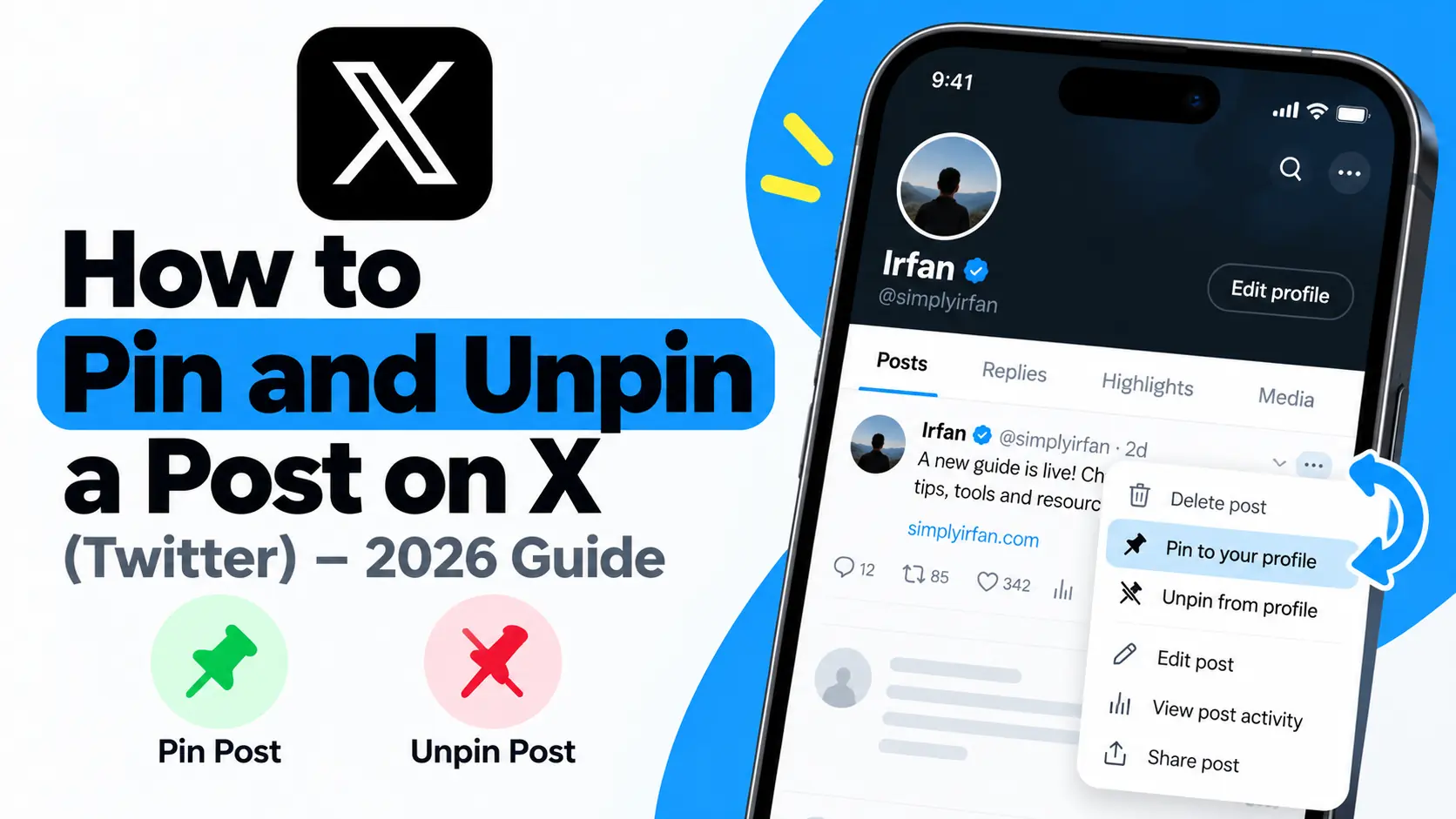
Have you ever visited someone’s X profile and noticed one post sitting above all the others? That is a pinned post. It allows users to highlight a particular post so visitors can find it without scrolling through the entire profile.
You might want to pin an important announcement, introduce yourself to new followers, showcase your best work, or direct people to a useful link. Whatever your reason, pinning a post on X (formerly Twitter) takes only a few steps.
In this guide, you will learn how to pin and unpin a post on X, how to do it on a computer or phone, how to replace an existing pinned post, and what to do if the pin option does not appear.
What Is a Pinned Post on X (Twitter)?
A pinned post is a post you choose to feature at the top of your X profile. When someone visits your profile, the pinned post is the first post they see in your timeline, making it useful for highlighting information you want visitors to notice.
For example, you could pin:
- An introduction explaining who you are and what you post about.
- An important announcement or update.
- A link to your website, blog, portfolio, or project.
- A product launch or business offer.
- A useful thread that explains a topic in detail.
- A post that represents your work or ideas particularly well.
A pinned post is different from a regular post because you control its position on your profile. Your other posts can continue appearing normally while the selected post remains featured.
According to the official X Help Center guide to customizing your profile, you can pin a post so that people visiting your profile see it first.
How to Pin a Post on X Using a Computer
If you use X on a desktop or laptop, you can pin a post directly from your profile. You do not need to install any additional software.
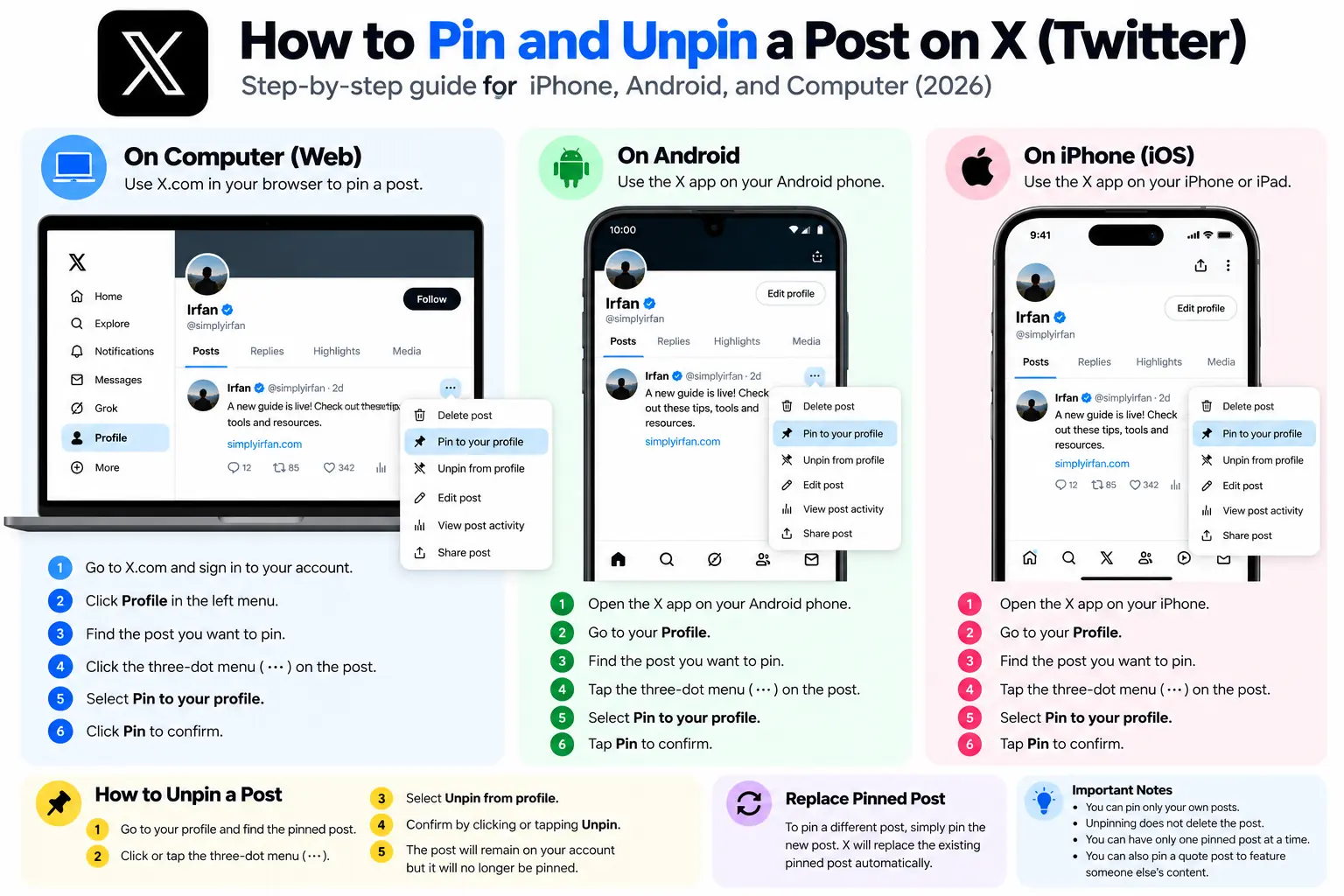
Follow these steps:
- Open X.com in your browser and sign in to your account.
- Select Profile from the navigation menu.
- Find the post you want to pin.
- Click the three-dot menu at the top of that post.
- Select Pin to your profile.
- Click Pin to confirm, if prompted.
Return to your profile and check that the selected post appears at the top.
Important: Choose a post published from your own account. X’s standard profile-pinning instructions are for your own posts, not for directly pinning another person’s post to your profile.
How to Pin a Post on X Using Android
You can also pin a post through the X app on an Android phone. The menu labels are generally similar to those on the website, although the interface may change with app updates.
- Open the X app on your Android phone.
- Tap your profile picture or open the navigation menu.
- Go to Profile.
- Scroll to the post you want to feature.
- Tap the three-dot menu on that post.
- Choose Pin to your profile.
- Tap Pin to confirm.
Open your profile again to verify that the post is displayed at the top.
If you cannot find the option, make sure you are viewing a post from your own account rather than a post you have merely liked, reposted, or seen in your timeline.
How to Pin a Post on X Using an iPhone
The process is almost identical on an iPhone or iPad.
- Open the X app and sign in.
- Navigate to your profile.
- Find the post you want to pin.
- Tap the three-dot menu at the top of the post.
- Select Pin to your profile.
- Confirm by tapping Pin, if prompted.
The post should now appear at the top of your profile.
You can use this feature to highlight a recent announcement, a helpful thread, or a post that tells new visitors what your account is about. You can change the featured post later whenever your priorities change.
How to Unpin a Post on X (Twitter)
Pinned posts do not have to stay at the top of your profile forever. You can unpin one whenever it is no longer relevant.
To unpin a post:
- Open X and go to your profile.
- Find the post currently pinned at the top.
- Click or tap its three-dot menu.
- Select Unpin from profile.
- Confirm by selecting Unpin, if prompted.
The post will lose its special pinned position. Unpinning does not delete the post. It remains on your account in its normal position unless you delete it separately.
For example, if you pinned a post announcing an event, you can unpin it after the event ends without removing the original announcement from your profile.
How to Replace an Existing Pinned Post
Suppose you pinned a post last month but now want to feature a new announcement. You do not need to create a new account or delete the old post.
You can replace the pinned post by following these steps:
- Open your X profile.
- Find the new post you want to feature.
- Open its three-dot menu.
- Select Pin to your profile.
- Confirm the action if prompted.
If X displays a confirmation message about replacing the existing pinned post, follow the prompt.
Afterward, check your profile to make sure the new post is displayed at the top. The previous post should no longer occupy the pinned position, but it will remain on your account unless you delete it.
If the interface does not let you replace the post directly, unpin the existing one first and then pin the new post.
Can You Pin Someone Else’s Post on X?
X’s normal profile-pinning feature is designed to pin posts from your own account. You generally cannot directly pin another user’s original post to your profile as though you published it yourself.
However, there is a practical workaround if you want to feature someone else’s content.
You can create a quote post that includes the original post and adds your own comment. If the resulting quote post is available on your profile, you can try pinning that post using the usual menu.
For example, you might quote a useful article with a short explanation of why you recommend it. You can then pin your quote post to make your commentary and the original content easier for visitors to find.
Keep in mind that quoting another person’s post does not make you the original author. Give proper context and credit when appropriate.
What Happens When You Pin a Post on X?
Pinning changes how a post is presented on your profile, but it does not fundamentally change the post itself.
Here is what you should know:
| Action | What happens |
|---|---|
| Pin a post | It appears at the top of your profile |
| Unpin a post | It loses its special pinned position |
| Pin a different post | The newly selected post becomes the featured post |
| Unpin without deleting | The original post remains on your account |
| Delete a pinned post | The post itself is removed, rather than simply losing its pinned position |
| Pin an announcement | Visitors can find it more easily when they visit your profile |
Pinning does not guarantee that a post will receive more impressions, likes, replies, reposts, or followers. It simply makes the post easier to find on your profile.
A visitor may still discover your account through a regular post, a reply, a search result, or a repost. The pinned post is especially useful when that visitor decides to open your profile and learn more about you.
Which Post Should You Pin on X?
Pinning is simple, but choosing the right post requires a little thought. Since the pinned post receives a prominent position on your profile, use it to give visitors useful information rather than selecting a post randomly.
1. Pin an Introduction to Your Account
If you want to grow your audience, consider pinning a post that introduces you and explains what people can expect from your account.
For example, a technology creator could highlight their main interests, the type of information they share, and a link to their website.
A clear introduction helps new visitors decide whether your content is relevant to them.
2. Pin Your Most Useful Post
You do not necessarily need to pin the post with the most likes. A practical tutorial, a thoughtful explanation, or a useful thread may be more valuable to someone discovering your profile for the first time.
Choose something that represents the quality and purpose of your account.
3. Pin an Important Announcement
If you are launching a project, publishing a new article, announcing an event, or sharing a significant update, a pinned post can make the information easier to find.
For time-sensitive announcements, include the relevant date and review the post when the information becomes outdated.
4. Pin a Link to Your Website
If you use X to introduce people to your website, you can pin a post containing a useful link.
Instead of posting only a URL, explain what visitors will find when they click it. A short description gives people a reason to visit.
For example, a blogger could feature a post that introduces a new guide, a useful resource, or a collection of tutorials.
5. Review Your Pinned Post Regularly
A pinned post can remain at the top of your profile until you change or remove it. That makes it easy to forget about old promotions or announcements.
Review the post periodically. If it no longer represents your work or contains outdated information, replace it with something more useful.
Why Can’t I Pin a Post on X?
If you do not see the Pin to your profile option, try these checks.
You are viewing someone else’s post. Start with a post published from your own account. The normal profile-pinning feature is not a general-purpose way to pin other users’ original posts to your profile.
You are looking in the wrong menu. The option is available from the three-dot menu associated with the post. It is not usually found in the main account settings.
The app interface has changed. Update the X app and check the post menu again. If the option is still missing, sign in at X.com using a browser and try there.
The post is no longer available. A deleted post cannot remain pinned. Find another available post if you want to feature something else.
You are using a different type of content or screen. Make sure you are opening a regular post from your profile rather than a notification, search result, or another screen with different options.
If none of these suggestions works, consult the official X Help Center for the latest information about profile features.
Frequently Asked Questions
Can I pin more than one post on X?
The standard profile-pinning feature provides one featured pinned-post position at a time. You can change which post occupies that position whenever you want.
Does pinning a post on X cost money?
The standard feature for pinning a post to your profile is available through X’s regular profile controls. You do not need to purchase a separate subscription just to use the normal pinning option.
Will my followers receive a notification when I pin a post?
Pinning a post is primarily a profile-display action. Do not rely on it to notify your followers. If you want to announce something to your audience, publish a post or use another communication method appropriate for your goal.
Does unpinning delete my post?
No. Unpinning removes the post from the special pinned position on your profile. The post remains on your account unless you delete it separately.
Can I pin a reply to my profile?
The standard profile-pinning instructions apply to posts published from your own account. If you want to feature an idea or discussion, consider publishing a separate post that summarizes it, then pinning that post.
Can I pin a post from the X mobile website?
You can try the same process through a mobile browser by signing in to X, opening your profile, and checking the post’s menu. The exact interface may differ from the official app.
Does pinning a post help me gain followers?
It may help profile visitors discover an important post, but it does not guarantee new followers. The result depends on the quality and relevance of the post, the visitor’s interests, and whether your profile gives them a reason to follow you.
Final Thoughts
Pinning a post on X is a simple way to decide what people see first when they visit your profile. You can use it to highlight an introduction, a useful resource, an announcement, or a post that represents your work.
To pin a post, open your profile, select the three-dot menu on one of your posts, choose Pin to your profile, and confirm. To remove it later, open the same menu and choose Unpin from profile.
The most important part is choosing the right post. A pinned post should help visitors understand who you are, what you share, or where they should go next. Review it occasionally and replace it when your priorities change.
For the latest instructions, see the official X guide to customizing your profile.
Also Read,