
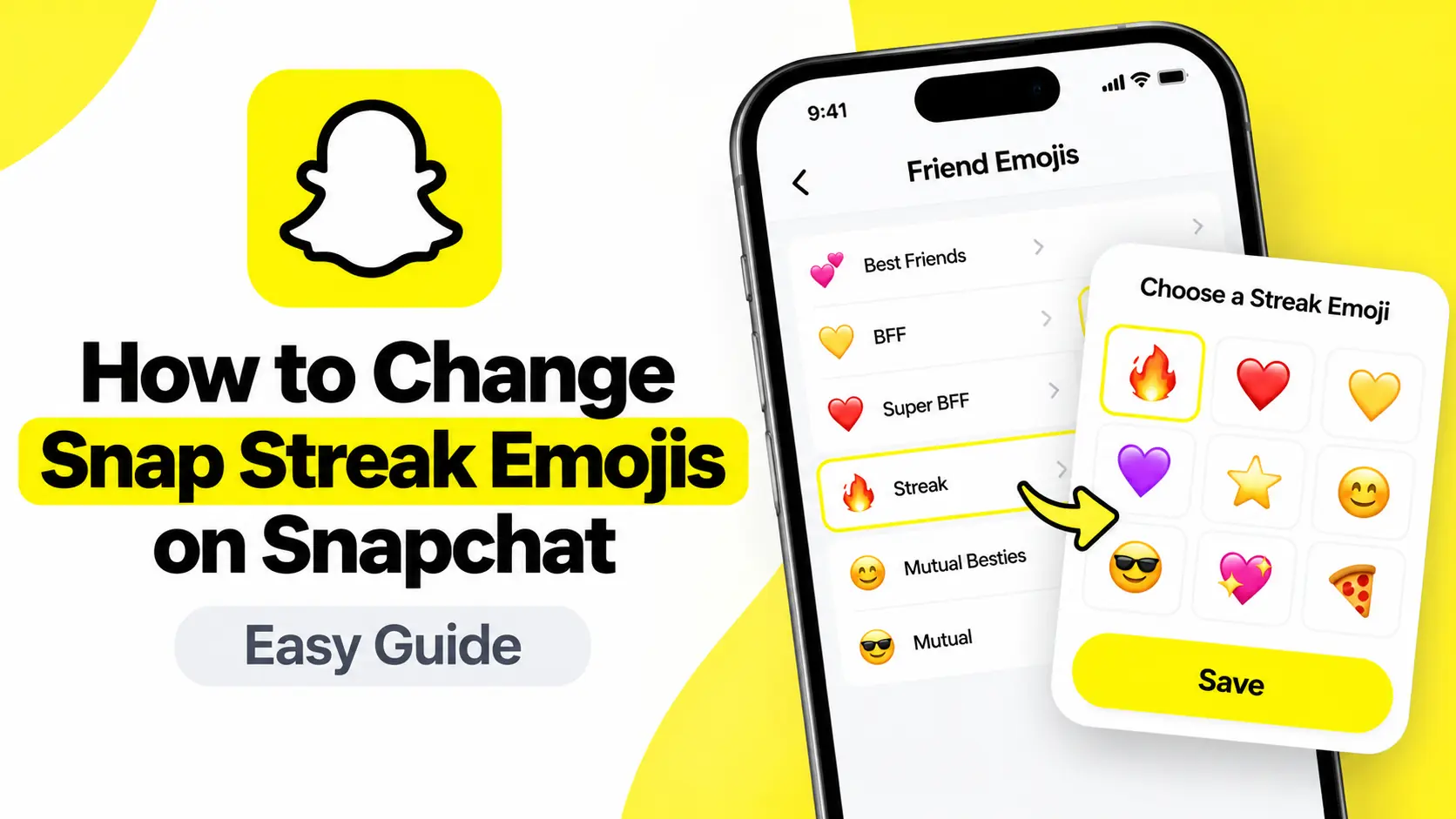
The fire emoji 🔥 is one of the most recognizable symbols on Snapchat. When you and a friend exchange Snaps every day, that little flame appears beside your friend’s name, along with a number showing how long your Snapstreak has lasted.
But what if you want to replace the fire with a heart ❤️, a star ⭐, a smiling face 😊, or another emoji that better matches your style?
The good news is that Snapchat lets you customize Friend Emojis, including the emoji used to represent a Snapstreak. You do not need to lose your existing Streak, start a new one, or change how often you send Snaps to personalize its appearance.
In this guide, you will learn how to change Snap Streak emojis on Snapchat for iPhone and Android, which settings to look for, how to restore the default fire emoji, and what to do if the option is missing.
Quick answer: How to change your Snap Streak emoji
You can change your Snapstreak emoji from Snapchat’s settings.
- Open Snapchat and tap your profile or Bitmoji.
- Tap the gear icon to open Settings.
- Scroll to App & Privacy and tap My App.
- Under Customize My App, open the Friend Emoji customization option.
- Select Streak.
- Choose an available emoji to replace the default fire emoji.
On iPhone, the setting is called Friend Emojis. On Android, it may be labelled Customize Emojis. Snapchat confirms these platform-specific menu names in its official Friend Emoji customization guide.
The exact options can vary by device, and Snapchat does not support every emoji.
What is a Snapstreak emoji?
A Snapstreak is a feature that tracks consecutive days of exchanging photo or video Snaps with a friend.
When a Streak is active, Snapchat displays a fire emoji by default, usually alongside a number indicating the number of days the Streak has lasted.
For example:
- 🔥 7 means the Streak has lasted seven days.
- 🔥 30 means the Streak has lasted 30 days.
- 🔥 100 means the Streak has reached 100 days, although the exact milestone display can depend on Snapchat’s interface.
The fire emoji is part of Snapchat’s Friend Emoji system. These symbols help you recognize different friendship statuses and activity patterns.
The important distinction is that the emoji is a visual indicator. The Streak itself depends on your activity with the other person, not on which emoji you select.
If you replace 🔥 with ❤️, Snapchat can still track your Streak in the same way. You are customizing the symbol, not changing the underlying feature.
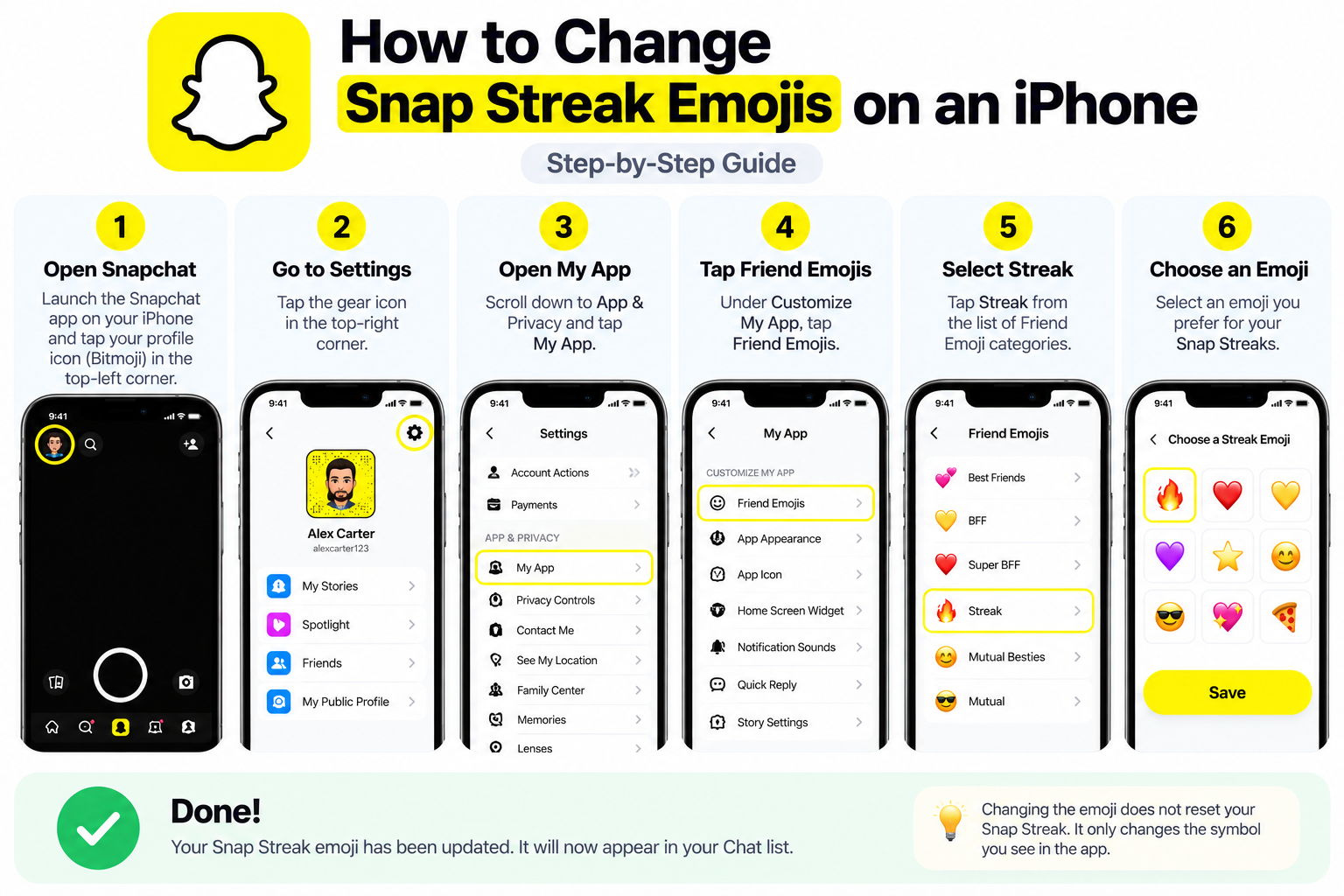
How to change Snap Streak emojis on an iPhone
If you use Snapchat on an iPhone, follow these steps to replace the default fire emoji with another available symbol.
Step 1: Open Snapchat
Launch the Snapchat app on your iPhone and sign in if necessary.
You should arrive at the camera screen, where you can take Snaps and access your profile.
Step 2: Open your profile
Tap your Bitmoji or profile icon in the top-left corner of the screen.
This opens your profile page, where you can access your account details, Snap Map, Stories, and settings.
Step 3: Open Settings
Tap the gear icon in the top-right corner.
Snapchat’s Settings menu contains options for privacy, notifications, app appearance, and other account preferences.
Step 4: Go to My App
Scroll down until you find the App & Privacy section.
Tap My App to open the app customization settings.
The layout can change as Snapchat updates its interface, so the wording or position may differ slightly in your version.
Step 5: Open Friend Emojis
Under Customize My App, tap Friend Emojis.
This is the section Snapchat provides for changing the symbols associated with friendship categories.
You may see several categories, such as Besties, BFF, Super BFF, and Streak.
Step 6: Select Streak
Tap Streak in the list of Friend Emoji categories.
Snapchat should display the emoji options available for that category.
The default symbol is the fire emoji 🔥, but you can select a different supported option if one is available.
Step 7: Choose your preferred emoji
Browse the available emojis and select the one you want to use for your Snapstreaks.
For example, you might prefer:
- ❤️ A heart to represent your daily connection.
- ⭐ A star for a distinctive look.
- 😊 A smile to keep things friendly.
- 💜 A purple heart if that colour suits your style.
These are examples of emojis you might like, not a guarantee that every one will appear in Snapchat’s selection list.
Once you select an available emoji, return to your Chat screen and check the result. Your customized Streak symbol should appear wherever Snapchat displays the corresponding Friend Emoji.
That’s it! You have changed the appearance of your Snapstreak without changing how it works.
How to change Snap Streak emojis on Android
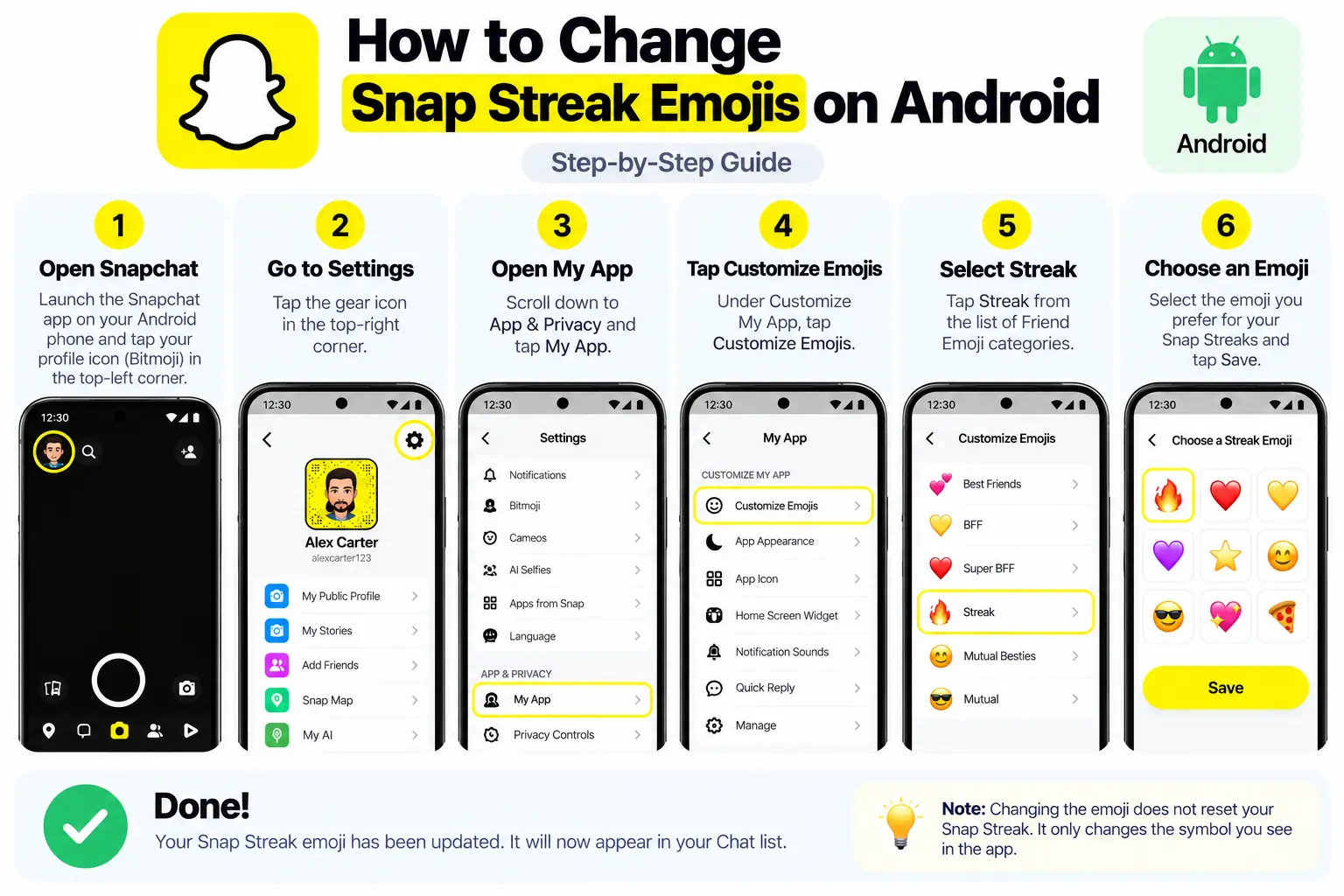
The process is similar on Android, but Snapchat uses a slightly different label for the emoji customization menu.
Step 1: Open the Snapchat app
Launch Snapchat on your Android phone.
Step 2: Tap your Bitmoji
Tap your profile icon in the top-left corner to open your profile.
Step 3: Open Settings
Tap the gear icon in the top-right corner.
Step 4: Find App & Privacy
Scroll down to App & Privacy and tap My App.
This section contains Snapchat’s app customization options.
Step 5: Select Customize Emojis
Under Customize My App, tap Customize Emojis.
On Android, this is the name Snapchat uses for the Friend Emoji customization feature in its support instructions.
Step 6: Find Streak
Look through the available emoji categories and select Streak.
You should then be able to choose from the supported replacements for the default fire emoji.
Step 7: Select a new emoji
Choose the emoji you prefer from the options displayed in the app.
Return to your Chat list and check whether the new symbol appears beside your active Snapstreaks.
If you cannot find the option, first update Snapchat and check the current instructions in the official Snapchat Support guide.
Which emojis can you use for Snapstreaks?
Snapchat allows users to customize Friend Emojis, but the available selection is not necessarily identical on every phone.
You may find different options depending on your device and the version of Snapchat you are using.
Here are some popular emoji ideas you might consider if Snapchat offers them.
| Emoji | Why you might choose it |
|---|---|
| 🔥 Fire | The original Snapstreak symbol |
| ❤️ Red heart | A simple symbol of affection |
| 💜 Purple heart | A colourful alternative |
| 💛 Yellow heart | A cheerful, bright appearance |
| ⭐ Star | A distinctive symbol |
| 😊 Smiling face | A friendly, playful look |
| 😎 Sunglasses face | A relaxed, casual style |
| 🍕 Pizza | A fun option for food lovers |
This is an inspiration list, not Snapchat’s official list of supported replacements. The emojis shown in the customization menu are the ones you can actually select.
If an emoji you want is missing, you may not be able to use it for that category. Snapchat specifically notes that customization options can change across devices and that not all emojis are available.
Does changing the Snapstreak emoji reset your Streak?
No. Changing the emoji does not reset your Snapstreak.
For example, suppose you have maintained a 45-day Streak with a friend. You decide to replace the fire emoji with a heart.
The customization changes the symbol Snapchat displays. It does not erase the 45-day history or make you start again from day one.
However, your Streak can still expire if you and your friend do not exchange the required Snaps.
According to Snapchat’s official Snapstreak instructions, both people need to send each other a photo or video Snap every day to keep the Streak going.
Ordinary text messages do not count toward maintaining a Snapstreak.
So, if your goal is to personalize your Chat screen, changing the emoji is safe to do without deliberately interrupting your daily Snapping routine.
How to change your Snapstreak emoji back to fire
Perhaps you experimented with a heart or another symbol and now want the original fire emoji back.
You can change the setting again using the same process.
- Open Snapchat and tap your profile icon.
- Tap the Settings gear.
- Open App & Privacy → My App.
- On iPhone, select Friend Emojis. On Android, select Customize Emojis.
- Choose Streak.
- Select the fire emoji 🔥 if it is available.
Return to your Chat screen to check the change.
If your version of Snapchat provides a Reset to Default option, you may also be able to use it to restore the default Friend Emojis. Keep in mind that resetting the defaults may affect other customized Friend Emoji categories, not just Streak.
If you only want the fire symbol back, changing the Streak category individually is the more targeted option.
Why can’t I change my Snap Streak emojis?
If you cannot find the Streak category or the emoji you want, there are several possible explanations.
1. The setting has moved
Snapchat updates its interface regularly, and older tutorials may show menu names that no longer match your app.
For example, older guides may refer to a Manage menu or Additional Services, while Snapchat’s current support instructions direct users to App & Privacy → My App.
Start by following the current official instructions rather than relying on screenshots from an older version.
2. You are looking in the wrong menu
The setting for changing a Streak emoji is part of Friend Emoji customization.
It is not the same as changing your Bitmoji, editing your profile, changing the chat wallpaper, or customizing your phone’s emoji keyboard.
Make sure you open Friend Emojis on iPhone or Customize Emojis on Android.
3. Your preferred emoji is unavailable
Snapchat does not promise that every emoji can be assigned to every Friend Emoji category.
If your preferred symbol does not appear in the list, choose another available option. Installing a different emoji keyboard is unlikely to add support for emojis that Snapchat itself does not offer.
4. Snapchat needs an update
An outdated version of the app may have a different settings layout.
Check the App Store on iPhone or Google Play on Android for an available Snapchat update. After updating, reopen the app and look for the customization option again.
5. The app is behaving unexpectedly
If the menu appears but your selection does not seem to take effect, close Snapchat and reopen it.
You can also restart your phone and try again. If the problem persists, consult Snapchat Support for assistance.
Avoid installing modified Snapchat apps or giving your login credentials to third-party services that promise custom Streak emojis. The built-in customization feature is the safer option.
What do the fire and hourglass emojis mean?
Customizing your Streak emoji is easier when you understand the difference between an active Streak and one that is about to expire.
Fire emoji 🔥
The fire emoji indicates an active Snapstreak. Snapchat displays it when you and your friend have exchanged Snaps consistently enough to establish a Streak.
The number next to it indicates the Streak’s duration.
If you replace the default fire symbol with another supported emoji, you are changing its appearance, not the underlying activity status.
Hourglass emoji ⌛
The hourglass warns that your Snapstreak is about to expire.
When you see this warning, you and your friend should each send a photo or video Snap as soon as possible to keep the Streak active.
Changing the default Streak emoji should not be treated as a way to avoid the expiry rules. The important thing is to exchange the required Snaps within the available time.
For more information, see Snapchat’s official guide, How do Streaks work and when do they expire?.
Can you change the Snapstreak emoji for just one friend?
Snapchat’s Friend Emoji customization setting changes the symbol associated with a category, such as Streak, rather than offering a separate replacement for each individual friend through that setting.
In other words, if you change the Streak category’s emoji, it is intended to customize how that category appears in your Snapchat experience, rather than giving one friend a unique Streak symbol and leaving all other Streaks unchanged.
This is different from changing the meaning of the Streak or changing how Snapchat calculates the number of days.
If you are looking for a way to assign a different symbol to every individual friend, check the options available in your current app. Snapchat’s standard Friend Emoji customization instructions do not promise independent emoji choices for each Streak.
Frequently asked questions
Can I change the fire emoji to a heart on Snapchat?
You can choose a heart if it is available in the Streak emoji customization options on your device. Open Settings, go to My App, select Friend Emojis on iPhone or Customize Emojis on Android, and choose Streak.
Does changing the Snapstreak emoji affect the number of days?
No. Changing the emoji changes its appearance, not the number of days associated with your Streak. The Streak still depends on the required daily Snaps from both people.
Can I choose any emoji from my phone’s keyboard?
No. Snapchat only lets you select from the supported options displayed in its customization menu. Not every emoji is available for every category.
Can I customize Friend Emojis on both iPhone and Android?
Yes. Snapchat provides customization instructions for both platforms. The menu is called Friend Emojis on iPhone and Customize Emojis on Android, although layouts and available choices can vary.
Why did my Snapstreak emoji change by itself?
Friend Emojis can change based on your Snapchat activity and friendship status. If a symbol changed unexpectedly, check whether the underlying category or Streak status has changed. Snapchat also notes that it cannot add, restore, or replace Friend Emojis that have changed recently.
Can I restore the default Snapchat emojis?
You can usually select the original emoji again from the relevant category’s customization options. If Snapchat offers Reset to Default, be aware that it may reset more than just the Streak emoji.
Will my friend see the same custom Streak emoji?
Friend Emoji customization changes how the emojis appear in your Snapchat experience. Do not assume that choosing a custom emoji changes the other person’s settings or makes the same symbol appear on their phone.
Do I need Snapchat+ to change my Snapstreak emoji?
Snapchat’s standard Friend Emoji customization instructions do not list Snapchat+ as a requirement for changing Friend Emojis. If you are trying to customize a different feature, such as a Snapchat+ exclusive visual option, its requirements may be different.
Final thoughts
Changing your Snap Streak emoji is a simple way to personalize Snapchat without changing the way your Streak works.
Open your profile, go to Settings, select App & Privacy → My App, and find the Friend Emoji customization option. Choose Streak, then select an available emoji that suits your style.
On iPhone, look for Friend Emojis. On Android, look for Customize Emojis.
Remember that the emoji is only a visual indicator. To keep your Snapstreak alive, you and your friend must continue exchanging photo or video Snaps every day. Choose the symbol you like, keep your daily routine going, and enjoy a more personalized Snapchat experience.
Helpful sources
- Snapchat Support: How do I customize Friend Emojis on Snapchat? — Official instructions for customizing Friend Emojis on iPhone and Android.
- Snapchat Support: What do my Friend Emojis mean on Snapchat? — Explains the meanings of common Friend Emojis, including fire and hourglass.
- Snapchat Support: How do Streaks work and when do they expire? — Explains how Snapstreaks work and what you need to do to maintain one.
Also READ,