

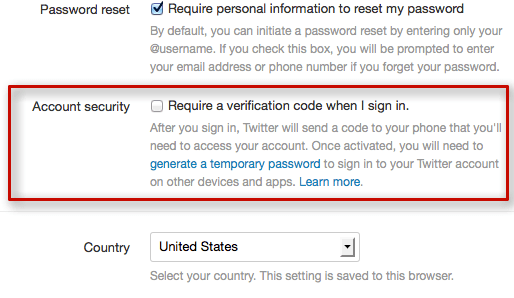
X/Twitter is one of the most popular social platforms, with millions of users sharing not just their everyday lives with other X/Twitter users, but also vital information about themselves with the network itself. If you use X/Twitter and wish to add an extra degree of protection to your account, you may utilise two-factor authentication.
To log in to your account after using two-factor authentication, you’ll need your password and a secondary login method: either a code, a login confirmation through an app, or a physical security key.
This extra step ensures that you and only you have access to your account. Here’s a step-by-step guideline to enabling X/Twitter two-factor authentication. Follow the steps below to validate your login.
Two-factor authentication can be enabled using 3 methods.
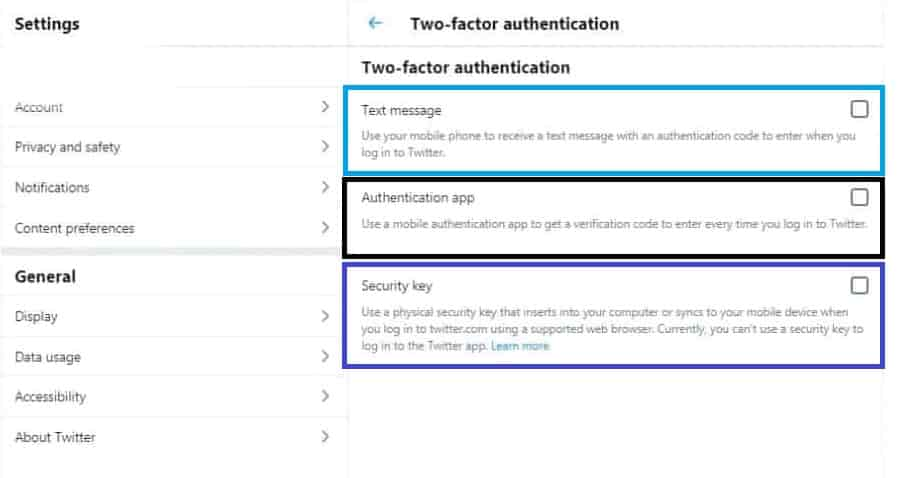 Text message Authentication app Security key
Enable X/twitter two-factor authentication (2FA) using text message
Here is a step-by-step procedure for signing up by text message:
1: Select a Text message by checking the box next to it.
2: After reading the overview instructions, click Next.
3: Enter your password and then press the Verify button.
Please keep in mind that if your phone number is not registered with your account, X/Twitter will urge you to input it. You may also opt out of allowing your existing contacts to discover you on X/Twitter.
4: Now input the confirmation code that was sent to you through text message. When you enter the code, you will be shown a confirmation screen with a backup code.
You may even snap a snapshot of the code if you need it in the future. This will allow you to access your account if you lose or change your phone number.
5: When you’re through with this screen, click Got it.
Text message two-factor authentication has been activated. When you log in to your account on X/twitter.com, X/Twitter for iOS, X/Twitter for Android, or mobile.X/twitter.com, a six-digit code will be sent to your phone to be entered throughout the login process.
Enable two-factor authentication (2FA) using an authentication app
Here is a step-by-step instructions for signing up for X/Twitter using an authentication app.
1: Select the Authentication app checkbox.
2: Read the overview instructions before pressing the Start button.
3: Enter your password and click Verify if asked.
4: You’ll be invited to scan a QR code to link your authentication app to your X/Twitter account.
You may use any time-based one-time password authentication tool (for example, Google Authenticator, Authy, Duo Mobile, 1Password, and so on).
5: After scanning the QR code, click Next.
6: Enter the code provided by your authentication app and then click Verify.
7: On the screen, a confirmation message will display. To complete the setup, click Got it.
You have successfully configured X/Twitter two-factor authentication using a third-party authentication app. You may now view and use codes to access your X/Twitter account.
How to enable X/twitter two-factor authentication (2FA) via Security key
To sign up using Security key, first enable either the Text message or Authentication app two-factor authentication methods. To enable X/Twitter two-factor authentication through Security key, follow the procedures outlined below.
- Select Security key.
- After reading the overview, click Start.
- Insert and touch your physical security key into your computer’s USB port.
- To complete the setup, follow the on-screen instructions.
To add or log in to your account using a security key, you must use the most recent version of a compatible browser such as Chrome, Edge, Firefox, Opera, or Safari.
You may now access your X/twitter.com account using your security key. Most social networking networks, including Instagram, Facebook, and Whatsapp, encourage two-step verification.
Also Read,