

Plans change. If you’re wondering how to cancel a Google Calendar event and reschedule it, Google Calendar lets you delete an event that’s no longer needed or update its date and time while keeping guests informed.
The important thing is to choose the right action. If you created the event and simply need a different time, editing the existing event is usually easier than cancelling it and creating a new one. If the event will no longer happen, deleting it may be the better option. And if someone else invited you, you generally cannot change the organizer’s event yourself.
In this guide, you’ll learn how to cancel and reschedule a Google Calendar event on a computer or phone, what happens to guest invitations, and how to avoid accidentally deleting an entire recurring meeting series.
Quick answer
- To reschedule an event you created: Open Google Calendar, select the event, click the Edit icon, change the date or time, and save your changes.
- To cancel an event you created: Open the event and select Delete. If guests were invited, Google Calendar can notify them that the event was cancelled.
- To remove an invitation you received: Open the event and select Remove or the equivalent option in your app. This removes it from your calendar; it does not cancel the event for everyone.
- To suggest a new time for someone else’s event: Contact the organizer or use any rescheduling options available in the invitation.
How to reschedule a Google Calendar event on a computer
If you organized the meeting, you usually do not need to delete it just to change the date or time. Edit the existing event instead. This keeps the event details together and helps avoid confusion between the original invitation and a replacement.
Step 1: Open Google Calendar
Go to Google Calendar in your browser and sign in to the Google account that contains the event.
Find the meeting you want to move. You can navigate to the date using the calendar view or use the search option to locate an event by its title.
Step 2: Open the event
Click the event on your calendar to view its details. Check the title, date, time, and guest list before making changes. If you have several meetings with similar names, confirm that you have selected the correct one.
Step 3: Click Edit
Select the pencil-shaped Edit event icon. The event editor lets you change details such as:
- Event title
- Date and start or end time
- Time zone
- Location or Google Meet details
- Description and attachments
- Guest list and notification settings
For a simple reschedule, you may only need to change the date and time.
Step 4: Choose the new date and time
Enter the new date and start and end times. If the meeting involves people in different time zones, double-check the time zone setting before saving.
For example, suppose a project meeting was scheduled for Monday, October 26, from 10:00 to 10:30 a.m. You now need to hold it on Tuesday, October 27, from 2:00 to 2:30 p.m. Change the date and time fields to the new schedule, then review the rest of the event.
If the meeting uses Google Meet, check that the video-conference details are still present and correct.
Step 5: Save the changes
Click Save. If the event has guests, Google Calendar may ask whether you want to send an update. Choose the option to send the update when attendees need to know about the new schedule.
Guests may need to refresh their calendars or allow a little time for the change to appear on every device.
Tip: If the event is still happening but at a different time, editing it is generally preferable to deleting it and creating another invitation. It reduces duplicate calendar entries and keeps the change attached to the existing event.
Get more tips Google Calendar productivity tips
How to cancel a Google Calendar event on a computer
If the meeting will not take place at all, you can delete the event you created.
Step 1: Find the event
Open Google Calendar and click the event you want to cancel. Verify the date and title before proceeding.
Step 2: Delete the event
Click the Delete event icon or open the event’s menu and select Delete. Google Calendar will remove the event from your calendar.
If you created the event and invited other people, deleting it removes it from their calendars as well, although the change may not appear immediately on every device.
Step 3: Check the notification
If Google Calendar asks whether to send cancellation information to guests, follow the prompt. Sending the update helps attendees understand that the meeting is no longer scheduled.
For a work meeting, it is also considerate to send a short message if people have already reserved time, prepared documents, or booked a room.
For example:
“Today’s project meeting has been cancelled. I’ll share an update if we need to arrange another time. Thanks for your understanding.”
If the meeting is only postponed, do not delete it without a plan for communicating the replacement date. Rescheduling the existing event is often the simpler option.
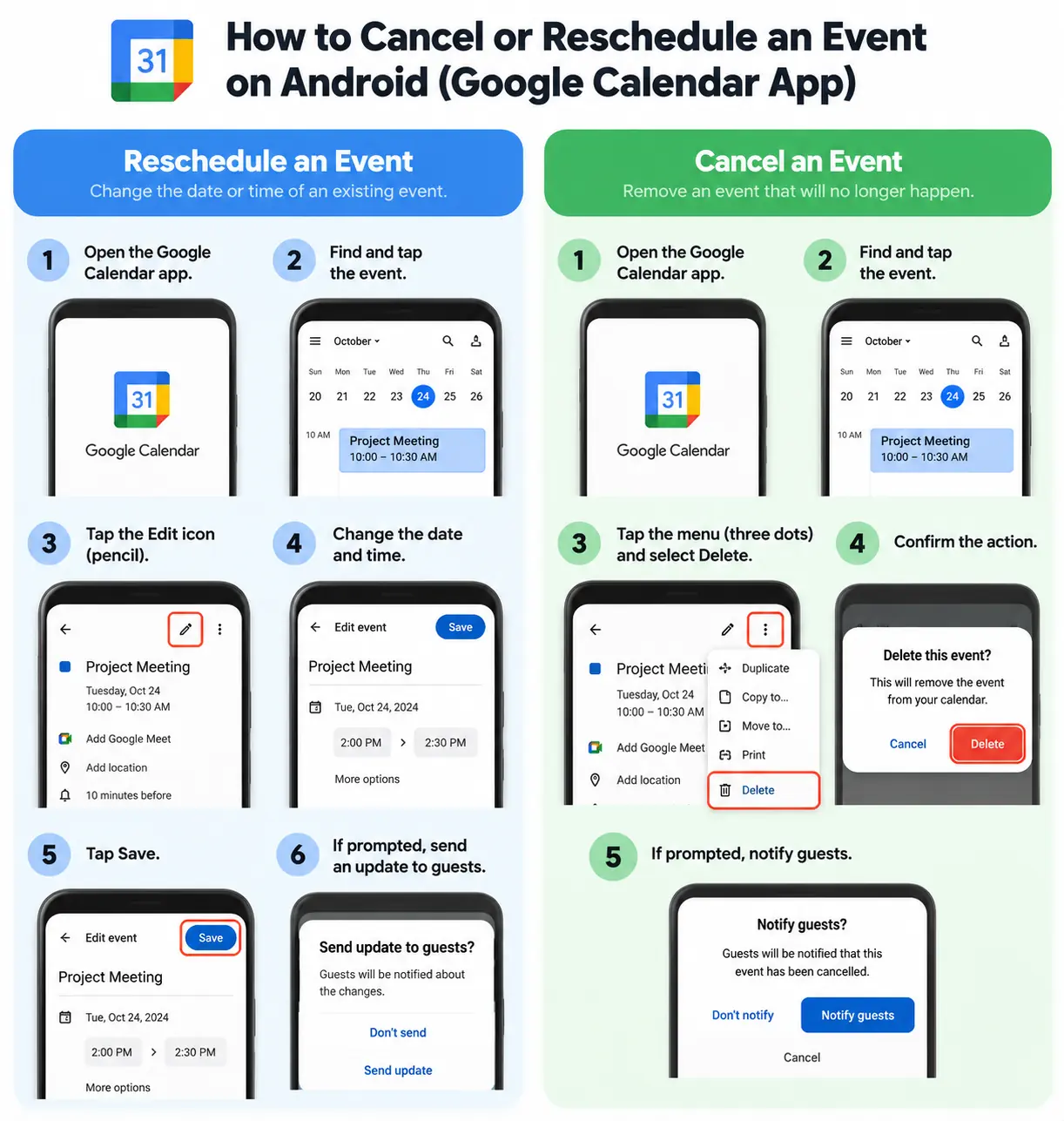
How to cancel or reschedule an event on Android
The Google Calendar app on Android lets you manage events from your phone. The exact labels can vary slightly depending on the app version and event permissions.
To reschedule an event
- Open the Google Calendar app.
- Find and tap the event.
- Tap the Edit icon, usually shown as a pencil.
- Change the date, start time, or end time.
- Tap Save.
- If prompted, send an update to the guests.
To cancel an event
- Open Google Calendar.
- Tap the event you created.
- Open the event menu or tap the Delete option.
- Confirm the action if prompted.
- Follow any prompt about notifying guests.
If you were invited to the event rather than creating it, you may see Remove instead of Delete. Removing an invitation declines or removes your participation; it does not cancel the meeting for the other attendees.
How to cancel or reschedule an event on iPhone
You can also edit or remove events using the Google Calendar app for iPhone.
Change the event time
- Open the Google Calendar app.
- Tap the event you want to change.
- Tap Edit.
- Select the new date and time.
- Save your changes and send an update if the app offers that option.
Delete the event
- Open the event.
- Tap the Edit or menu option, depending on the interface.
- Choose Delete.
- Confirm the action and follow any guest-notification prompts.
If the event belongs to someone else, you may only be able to remove it from your own calendar. Contact the organizer if you need the meeting moved or cancelled for everyone.
Can you reschedule a Google Calendar event without cancelling it?
Yes. If you are the organizer or have permission to edit the event, open it, change the date or time, and save. You do not need to cancel the original event first.
This is usually the best approach when the meeting is still going to happen. It keeps the same event record and gives guests an updated invitation rather than leaving them with a cancelled event and a separate replacement.
There are situations where you might prefer to create a new event—for example, when the purpose, guest list, or meeting format has changed substantially. If you do, make sure you clearly cancel the old invitation so attendees do not mistake both events for active meetings.
What happens when you delete an event with guests?
If you created the event, deleting it removes it from your calendar and the calendars of invited guests. It may take a little while for the cancellation to appear on all devices.
If you delete an event that someone else organized, you generally remove it only from your own calendar. The organizer may need to delete or update the event to change it for everyone.
If you were invited and choose Remove, Google Calendar treats that as declining the invitation. The other attendees can still see the event.
For official details, see Google’s guide: Delete an event in Google Calendar.
Related: how to share your Google Calendar
How to reschedule a recurring Google Calendar event
Recurring meetings need extra care because a change may affect one meeting, several upcoming meetings, or the entire series.
When you edit or delete a recurring event, Google Calendar may offer options such as:
- This event: Changes or removes only the selected occurrence.
- This and following events: Applies the change to the selected occurrence and future occurrences.
- All events: Applies the change to the entire recurring series.
The exact wording can vary by platform.
Before saving, read the option carefully. If you only need to move next week’s meeting, do not accidentally change every meeting in the series.
Deleting recurring events can also have different recovery behavior. Google notes that events deleted using the “This and following events” option are not moved to the trash and cannot be restored in the same way as an ordinary deleted event. Check the options before confirming.
For more information, refer to Google Calendar’s official event deletion instructions.
How to suggest a new time when someone else organized the meeting
If another person created the event, you may not have permission to edit its schedule. You can still ask the organizer to move it.
Try these steps:
- Open the invitation in Google Calendar.
- Check whether your interface offers an option to suggest a new time.
- If it does, choose a suitable alternative and submit your suggestion.
- Otherwise, email or message the organizer with your availability.
For example:
“Hi, I’m unable to attend at the scheduled time. Would Tuesday afternoon or Wednesday morning work instead? Please let me know which option suits the group.”
A suggested time is not the same as a confirmed reschedule. Wait for the organizer to update the invitation before treating the new time as final.
Common problems and how to fix them
The event is still showing after I deleted it
Calendar changes may take time to sync across devices. Refresh Google Calendar or close and reopen the app. If you deleted an event you did not organize, the organizer may need to remove it for everyone.
Guests did not receive the updated time
Check that you saved the event and sent the update if prompted. Ask guests to refresh their calendars and check their email notifications. In a work or school account, some behavior may also depend on organizational settings.
I cannot edit the event
You may not be the organizer, or you may not have permission to make changes. Ask the owner to reschedule it or grant the necessary access.
I accidentally deleted the wrong event
On a computer, Google Calendar has a Trash area where eligible deleted events can generally be restored for up to 30 days. Open Settings and look for Trash, then find the event and select Restore if it is available.
There are exceptions, particularly for some recurring-event deletions and events you do not have permission to manage. See Google’s official instructions before assuming an event can be recovered.
I want to move only one meeting in a recurring series
Open the specific occurrence and select the option that changes only that event. Review the confirmation carefully before saving.
Tips for rescheduling meetings without confusing attendees
A calendar update is more useful when people understand what changed. Before you finish, check the following:
- Confirm the time zone. This matters especially for remote teams and international meetings.
- Send the update. Do not assume every guest will notice a silent change.
- Check the meeting link. Make sure the Google Meet link or other conferencing details are still correct.
- Avoid duplicate invitations. If you create a replacement event, clearly cancel the old one.
- Review recurring-event options. Decide whether the change applies to one occurrence or the full series.
- Give people context. If the meeting is cancelled at short notice, a brief message can save attendees from waiting or preparing unnecessarily.
Frequently asked questions
Can I cancel a Google Calendar event without notifying guests?
Google Calendar’s prompts and notification behavior can vary. If guests need to know that the meeting is cancelled, send the cancellation update or contact them directly. Do not assume they will discover the change on their own.
Can I change the date of a Google Calendar event after inviting people?
Yes, if you organized the event or have permission to edit it. Change the date and time, save, and send an update so guests can see the revised schedule.
Does deleting an event cancel it for everyone?
If you created the event, deleting it removes it from invited guests’ calendars as well. If you were only an attendee, removing it generally affects your own calendar, not everyone else’s.
Can I recover a deleted Google Calendar event?
Some deleted events can be restored from Google Calendar’s Trash on a computer, typically within 30 days. Some recurring-event deletions cannot be restored through the Trash, so check the deletion options carefully.
Do guests get notified when I reschedule a meeting?
Google Calendar may prompt you to send an update after you save changes. Send it when attendees need to know about the new date, time, or details.
Final thoughts
Cancelling and rescheduling an event in Google Calendar is straightforward once you know who owns the invitation and whether the meeting is moving or being cancelled altogether.
If the meeting is still happening, edit the existing event and send an update. If it will not happen, delete the event and make sure guests know. If someone else organized it, ask them to make the change rather than assuming you can update the schedule yourself.
Taking a few seconds to check the guest list, time zone, and recurring-event options can prevent missed meetings and duplicate invitations.
Helpful official source: Google Calendar Help — Delete an event.