

With the rapid integration of AI data-scraping and advanced social engineering, treating Facebook like a private digital diary is more dangerous than ever. As of early 2026, Facebook is not just a place to connect; it is a massive data broker.
Before you hit “Post,” it is crucial to understand what malicious actors, algorithm bots, and even opportunistic acquaintances can do with your data.
The 2026 Facebook Reality Check (Latest Statistics)
To understand why you need to be careful, look at the sheer scale of Facebook’s ecosystem this year:
- Massive Audience: Facebook now boasts 3.07 billion Monthly Active Users (MAUs) and over 2.11 billion Daily Active Users (DAUs).
- The Mobile Takeover: A staggering 81.8% of users access Facebook exclusively via a mobile phone, making impulse posting and accidental location-sharing much more common.
- Ad Reach & Tracking: Facebook generated over $134.9 billion in ad revenue recently. AI-powered Advantage+ campaigns track user behavior across apps to serve hyper-targeted ads.
- The Scam Ecosystem: With 5% of accounts estimated to be fake or duplicates, there are roughly 150+ million bot or scam accounts actively crawling for user data.
With over a third of the Earth’s population on the platform, here is the definitive list of what you should never share on Facebook in 2026.
7 Things You Should Never Share on Facebook
Sharing that you’re on vacation might seem innocent, but it’s an open invitation for burglars. Posting your real-time location gives strangers insight into your daily patterns.
1. Real-Time Locations and Boarding Passes
Posting a picture of your boarding pass or checking into a resort in real-time is an open invitation to burglars. In 2026, automated bots scrape location tags and public check-ins to build databases of empty homes.
The Fix: Wait until you are back home to post your vacation photo dump. Never post boarding passes; the barcodes contain your frequent flyer number and PNR, which hackers can use to hijack your return flights.
2. Pictures of Children (Without Blurring Faces)
We are in the era of deepfakes and advanced facial recognition AI. Posting high-res photos of your children, their school uniforms, or their daily routines creates a permanent digital footprint they never consented to.
The Fix: If you must share family photos, limit the audience strictly to “Close Friends” or use emojis to cover young children’s faces.
3. Personal Identification Details
Never post:
- Your home address
- Phone number
- Driver’s license
- Passport details
- Social Security Number
Even something as small as your birthday combined with your hometown can be used for identity theft.
4. “Get to Know Me” Viral Questionnaires
“What was your first car?” “What is your mother’s maiden name?” “What street did you grow up on?” These viral copy-paste quizzes are not innocent fun—they are cleverly disguised social engineering tools. Hackers use these exact questions to bypass security questions on your banking, email, and crypto accounts.
5. Workplace Gripes or Confidential News
Cancel culture and corporate monitoring are at an all-time high. Even if your profile is “private,” a single screenshot from an acquaintance can be forwarded to your employer. Furthermore, never post pictures of your work desk if confidential emails, ID badges, or proprietary software are visible on your monitor.
6. Financial Wins or “Humble Brags”
Posting about buying a new house (especially with the keys visible, which can be 3D-printed from a photo), a massive crypto win, or your new credit card makes you a high-value target for spear-phishing attacks.
7. Personal Identifiable Information (PII)
Never include your full birth date (year included), your personal phone number, or your home address. Scammers use this trifecta to commit identity theft, open fraudulent credit lines, or hijack your mobile number via SIM-swapping.
8. Vaccine Cards or Sensitive Medical Data
Medical identity theft is a lucrative black-market business. Posting prescription bottles, medical diagnoses, or vaccination records exposes your sensitive health data to insurance profilers and scammers selling fake cures.
The “Think Before You Post” Checklist
Before you post anything on Facebook, ask yourself:
- Could this information be used against me?
- Am I revealing my location or personal routine?
- Would I be okay if my boss saw this?
- Is there any sensitive data in the image or caption?
- Will this still feel okay to have online in 5 years?
Facebook constantly changes its UI. Here is the updated 2026 step-by-step guide to securing your account.
Screenshot Guides: How to Lock Down Your Facebook in 2026
How to Lock Your Facebook Profile (The 2026)
Locking your profile ensures that only your confirmed friends can see your photos, posts, and full profile details.
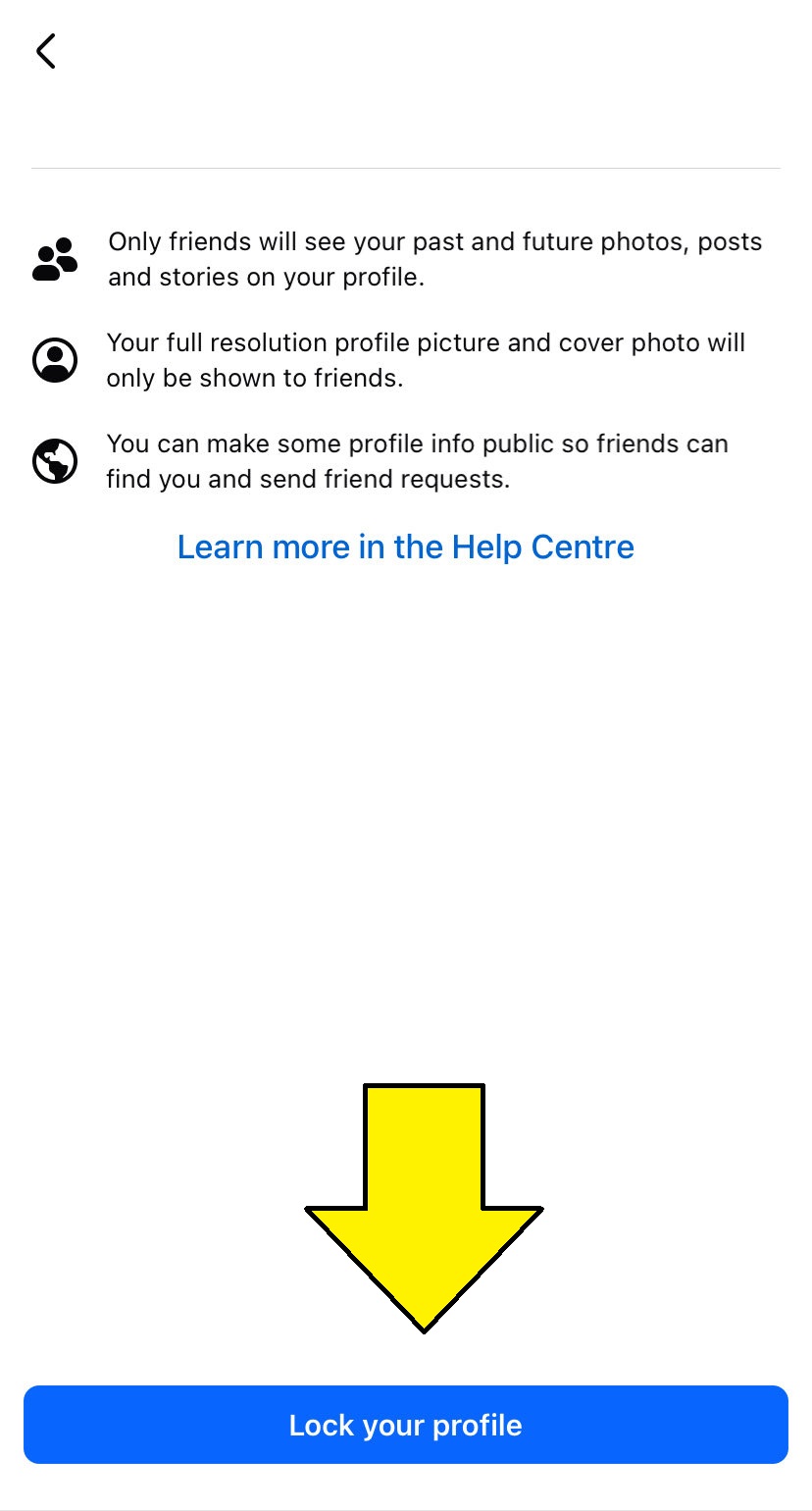
A screen will explain how locking works. Tap the big blue button at the bottom that says Lock Your Profile. You will get a popup confirming “Only your friends can see the photos, posts, and stories on your profile.“
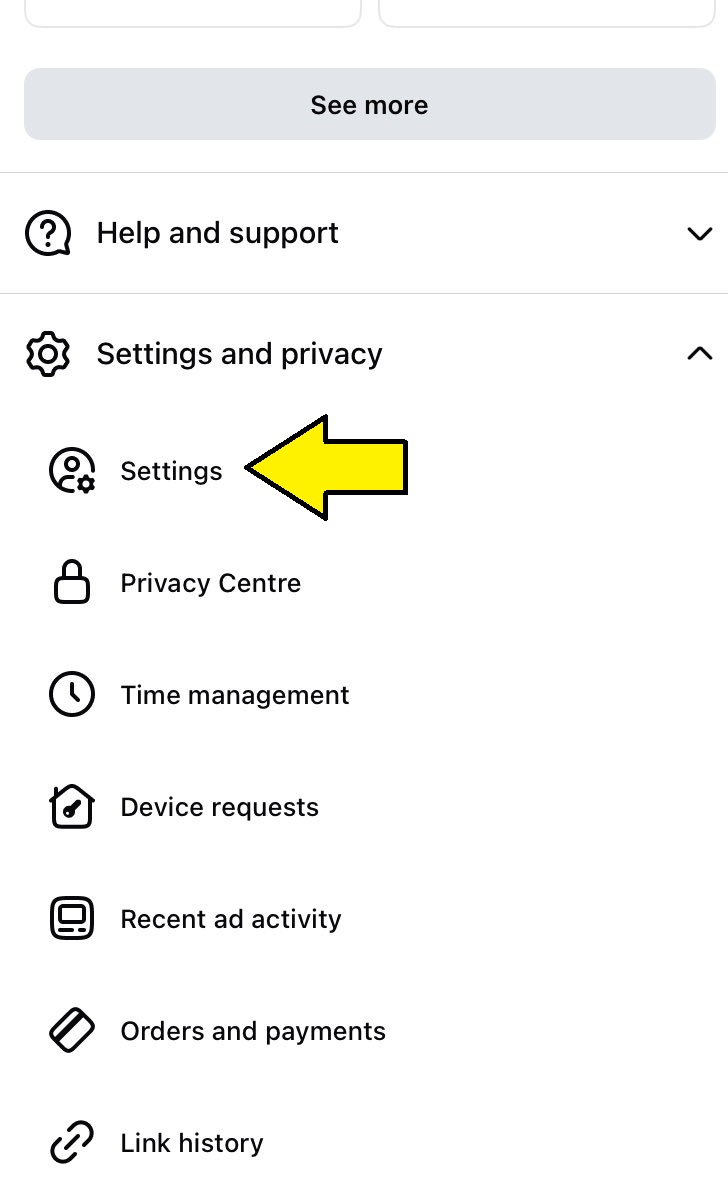
Open your Facebook App. Tap on your Profile Picture in the bottom right (iOS) or top right (Android) to go to the Menu.

Profile Menu Settings
Tap on your name at the top to view your profile. Next to the “Edit Profile” button, tap the Three Horizontal Dots (…).
Profile Settings Menu
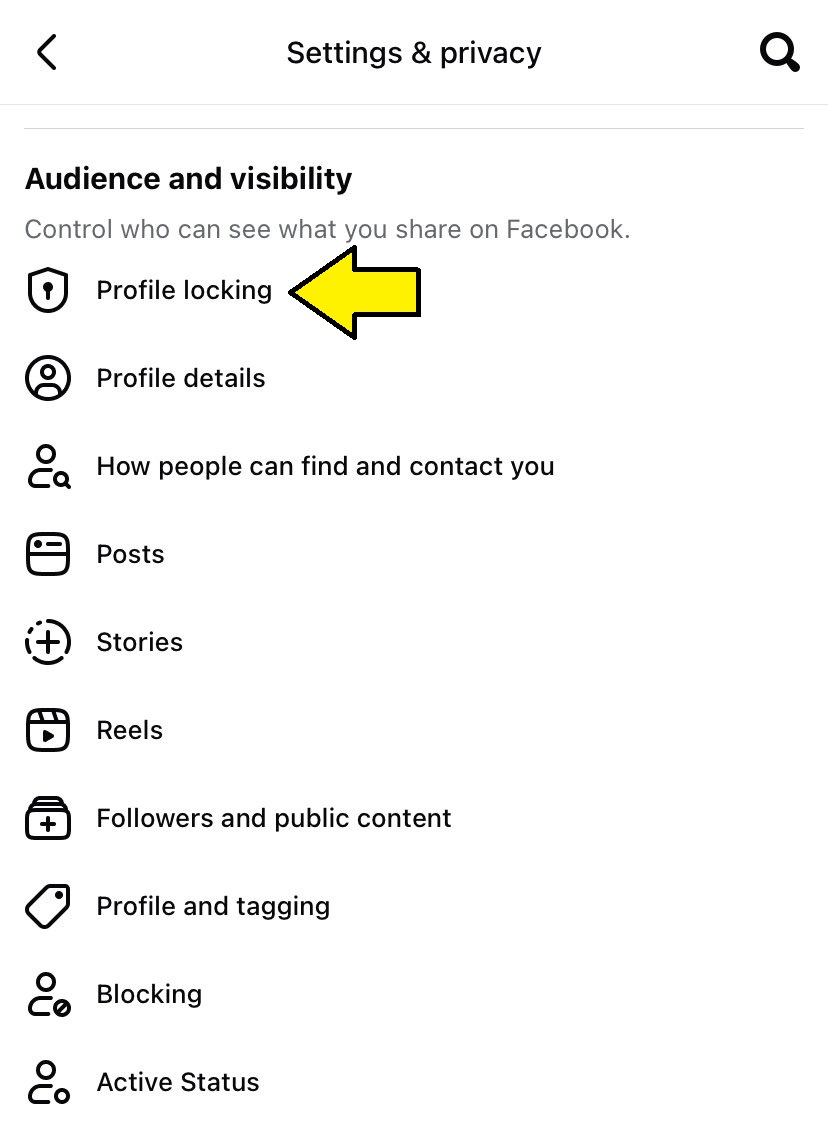
Look down the list and tap Lock Profile (usually indicated by a shield and keyhole icon).
Confirmation Screen
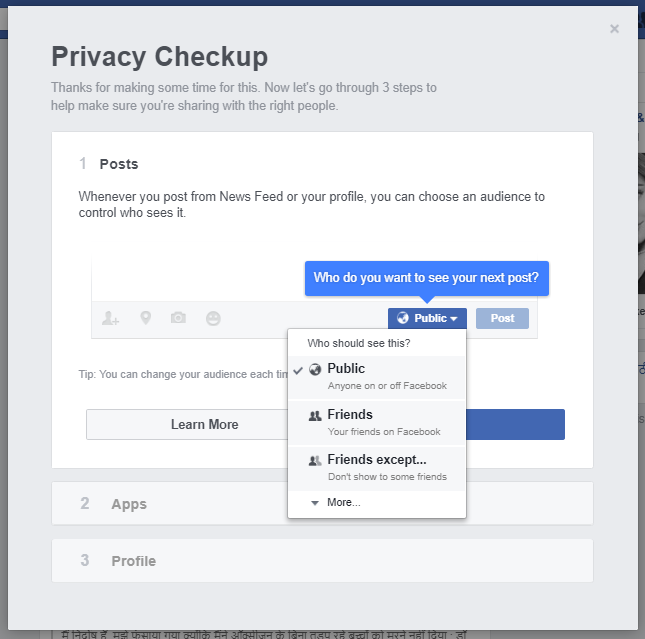
Changing Your Default Post Visibility
Stop broadcasting your life to the entire internet by accident.
Tap on Who can see your future posts? Change the default from Public to Friends or Friends except… if you want to exclude specific coworkers or acquaintances.
Go to Menu > Settings & Privacy > Settings.
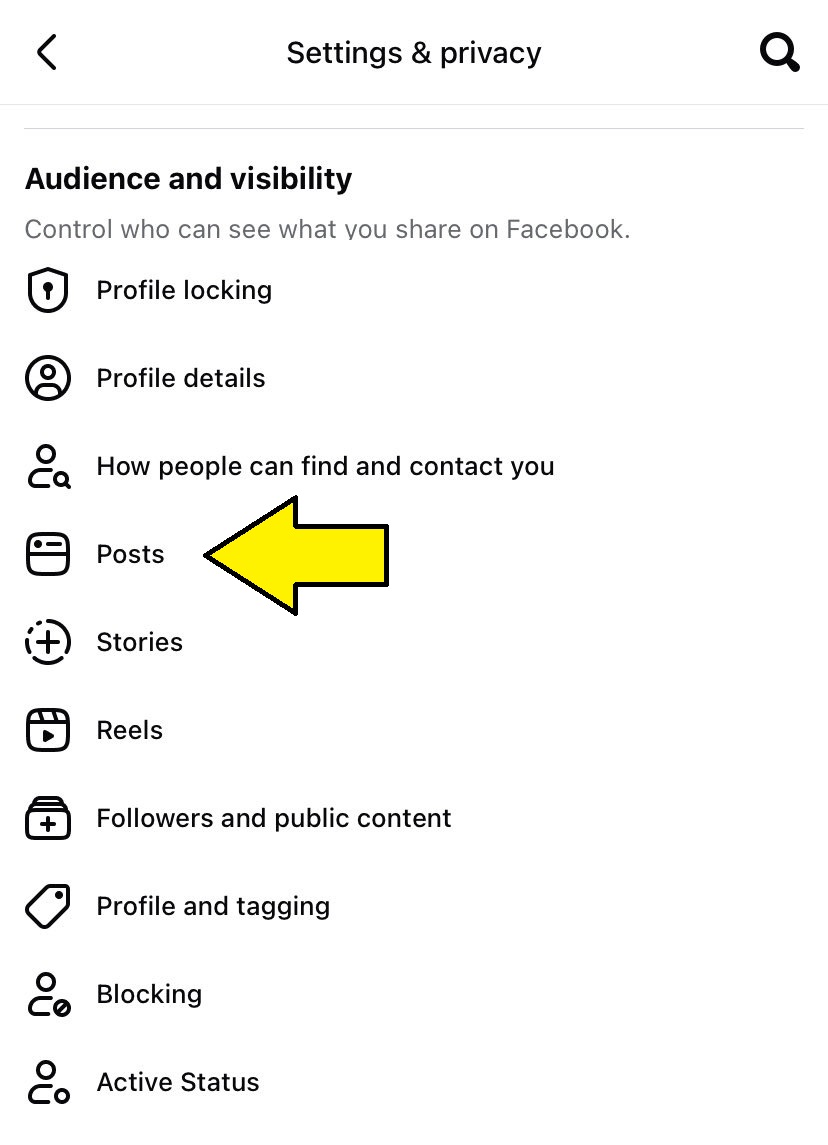
Scroll down to the Audience and visibility section. Tap on Posts.
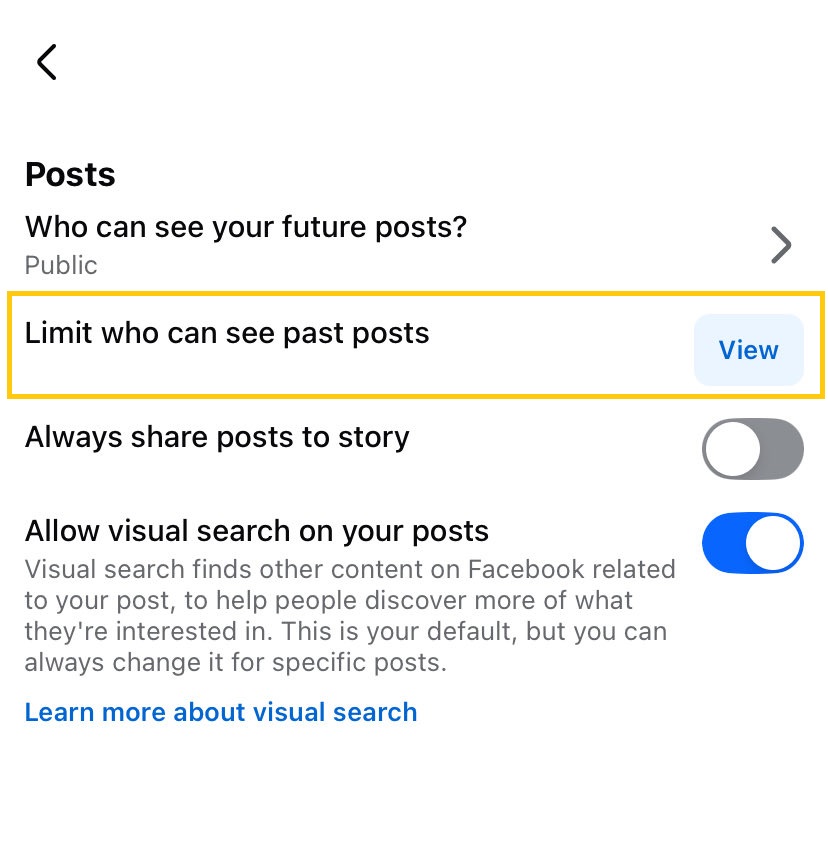
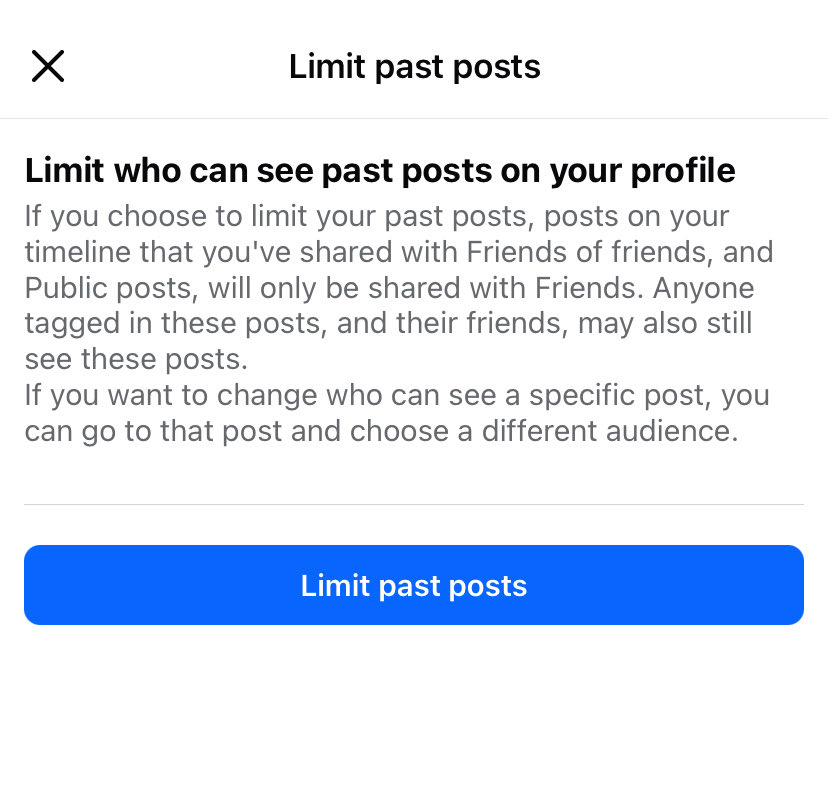
While here, tap Limit who can see past posts. This bulk-changes all your old, forgotten “Public” posts to “Friends only” in one click.
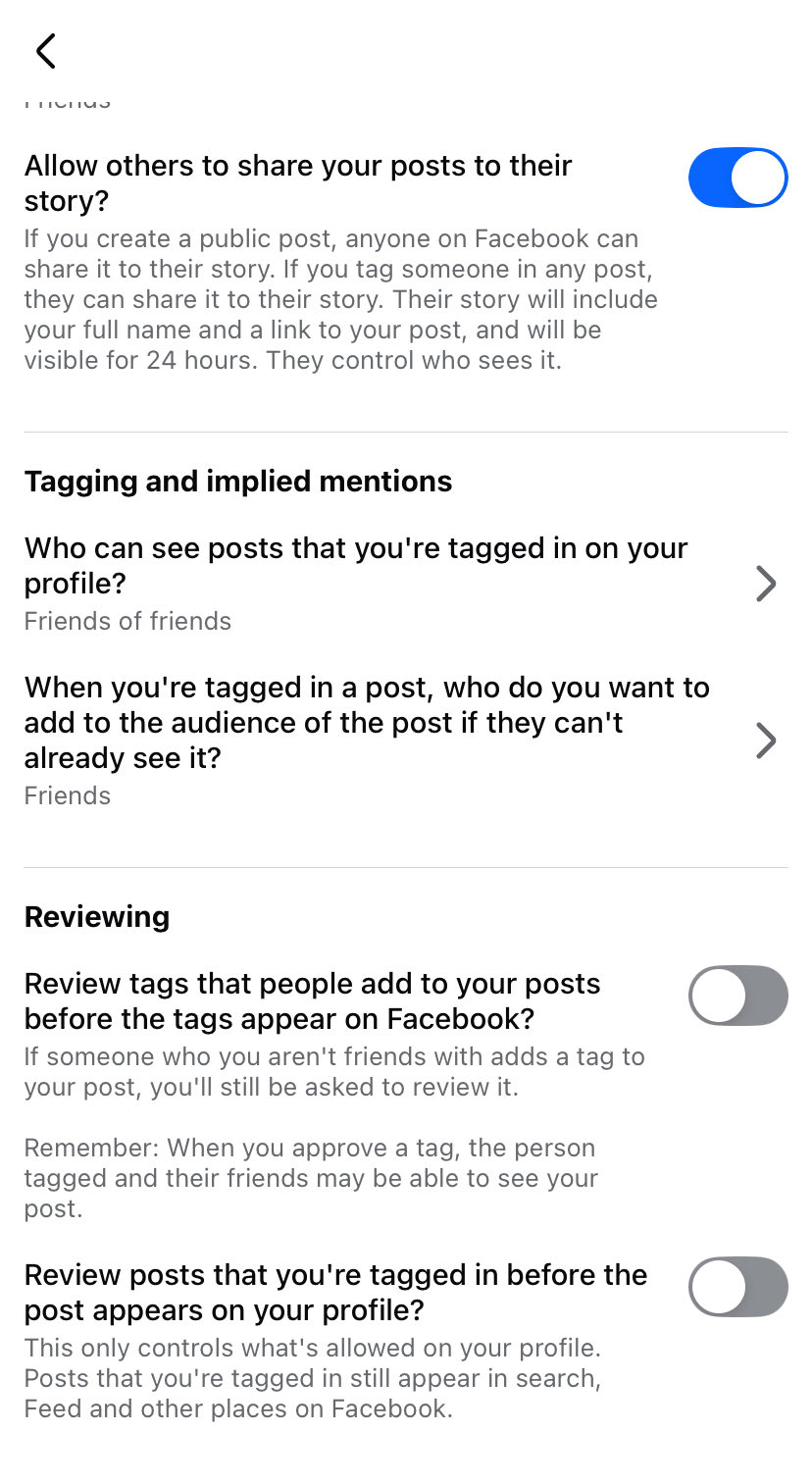
Enable Tag Review (Stop unwanted photos on your timeline)
Don’t let a friend’s embarrassing photo of you appear on your profile without your permission.
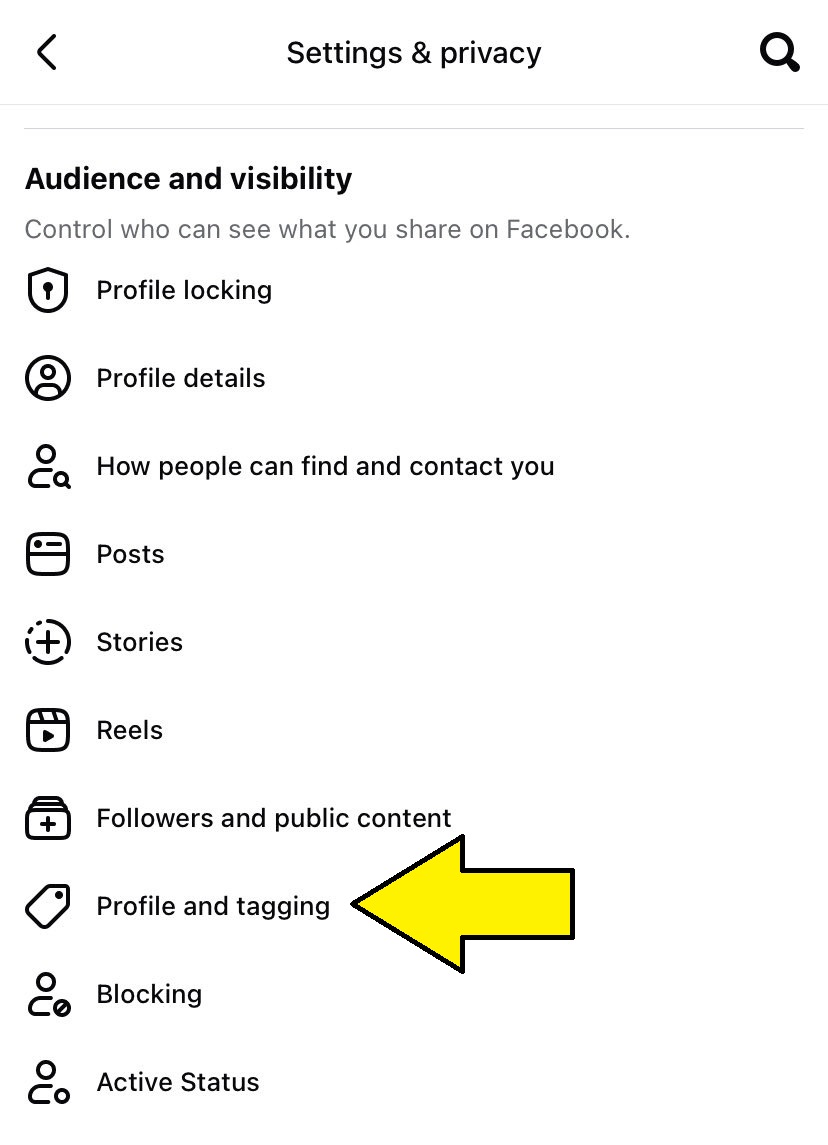
- Navigate back to Settings > Audience and visibility.
- Profile and Tagging
- Tap on Profile and Tagging.
- Review Section
- Scroll to the bottom under the Reviewing header.
- Toggle ON: “Review tags people add to your posts before the tags appear on Facebook?”
- Toggle ON: “Review posts you’re tagged in before the post appears on your profile?”
The 2026 Golden Rule: If you wouldn’t put it on a billboard on a busy highway, it doesn’t belong on Facebook. Protect your data, update your privacy settings, and think before you post!
Frequently Asked Questions (FAQ)
What is the “AI Training” toggle, and why should I care? In 2026, one of the biggest Facebook privacy mistakes is ignoring the AI data usage setting. By default, Meta may use your public posts, comments, and even photo metadata to train its Llama models. If you value your intellectual property or personal “vibe,” you should manually opt-out in the Privacy Center under the “AI at Meta” tab.
Can third-party apps still track me on Facebook in 2026? Yes, but only if you let them. While third-party cookies are dead, “Server-to-Server” tracking is the new norm. You must regularly clear your Off-Facebook Activity. This is a list of businesses that share your real-world interactions (like purchases) back to Facebook to create a hyper-personalized ad profile.
Is my location data private if I don’t “Check In”? Not necessarily. A common mistake is leaving “Precise Location” on for the Facebook app. Even if you don’t post your location, the app can track your movements to suggest “People You May Know” based on physical proximity. For maximum privacy, set location permissions to “Only While Using the App” and turn off “Precise Location.”
What happens to my deleted posts in 2026? When you hit delete, the post enters a “Restoration Window” for 30 days. However, a major mistake is assuming it’s gone from the AI’s “memory.” While it disappears from your timeline, if it was scraped for training while public, the patterns of that data might remain. Always set your default post privacy to “Friends” rather than “Public” to prevent initial scraping.
How can I stop my profile from appearing in external search engines? This is a classic privacy oversight. In your Privacy Settings, find the option: “Do you want search engines outside of Facebook to link to your profile?” Set this to No. This prevents your profile from being a top result when someone Googles your name, protecting you from “doxing” or employer deep-dives.
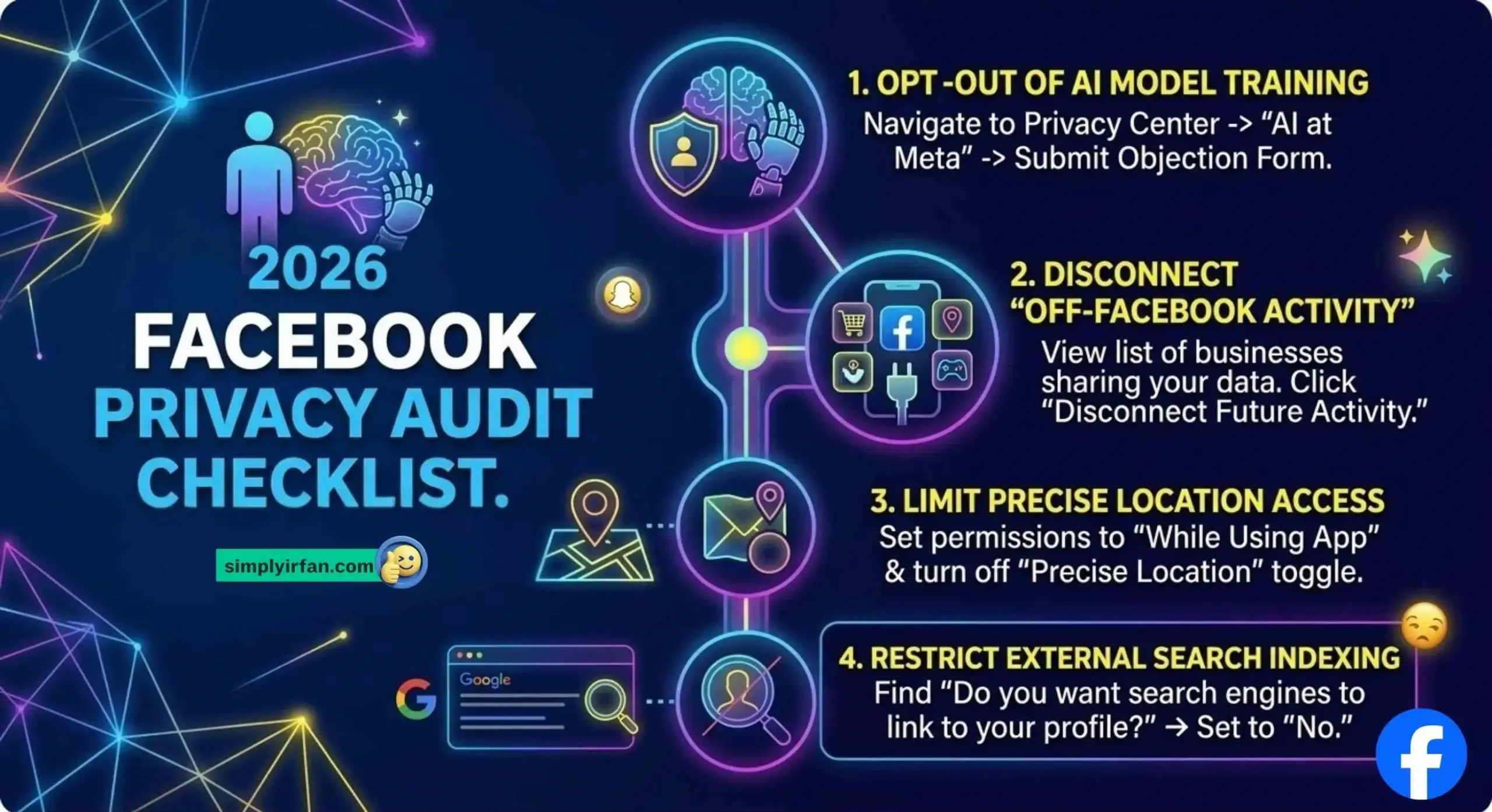
Facebook Privacy Audit Checklist: Perfectly Clean Guide
By implementing this four-stage checklist, you actively reduce the most dangerous Facebook privacy mistakes of the 2026 landscape.
Stage 1: OPT-OUT OF AI MODEL TRAINING
AI models are trained on your public data. Your Facebook Privacy Audit must start here. Navigate to the Privacy Center $\rightarrow$ AI at Meta and complete the “Data usage objection form.” This forces Meta to treat your content as intellectual property rather than data for training its generative models.
Stage 2: DISCONNECT “OFF-FACEBOOK ACTIVITY”
Even after cookies, businesses are tracking you using server-side pixels. They share your real-world interactions (purchases, visits) back to Meta to build a “Shadow Profile.” Go to your Account Settings $\rightarrow$ Off-Facebook Activity and click “Disconnect Future Activity.” This severs the link between your non-Facebook behavior and your main profile.
Stage 3: LIMIT PRECISE LOCATION ACCESS
Your precise movements are an engagement signal for “Search Everywhere” Optimization (SEO). Set the Facebook app permissions to “While Using App” and, crucially, turn off the “Precise Location” toggle. This protects your exact location data while still allowing location-based features to work broadly.
Stage 4: RESTRICT EXTERNAL SEARCH INDEXING
You do not want a simple Google search to lead to your main profile. In your default post privacy, set the option for search engines outside of Facebook to link to your profile to No. This prevents generic, informational search intent from accidentally “doxing” your personal account.
Navigating the Facebook privacy mistakes of 2026 is an exercise in intentionality. By taking 15 minutes to follow this checklist, you transform your profile from a data source for AI into a secured entity within the modern social landscape.
Conclusion: Privacy is a Moving Target
The Facebook privacy mistakes of 2026 are more subtle than in previous years. It’s no longer just about hiding your “tagged” photos; it’s about managing your digital identity in an age of machine learning. By taking 10 minutes to audit your Off-Facebook Activity and AI Toggles, you regain control over your digital footprint.