
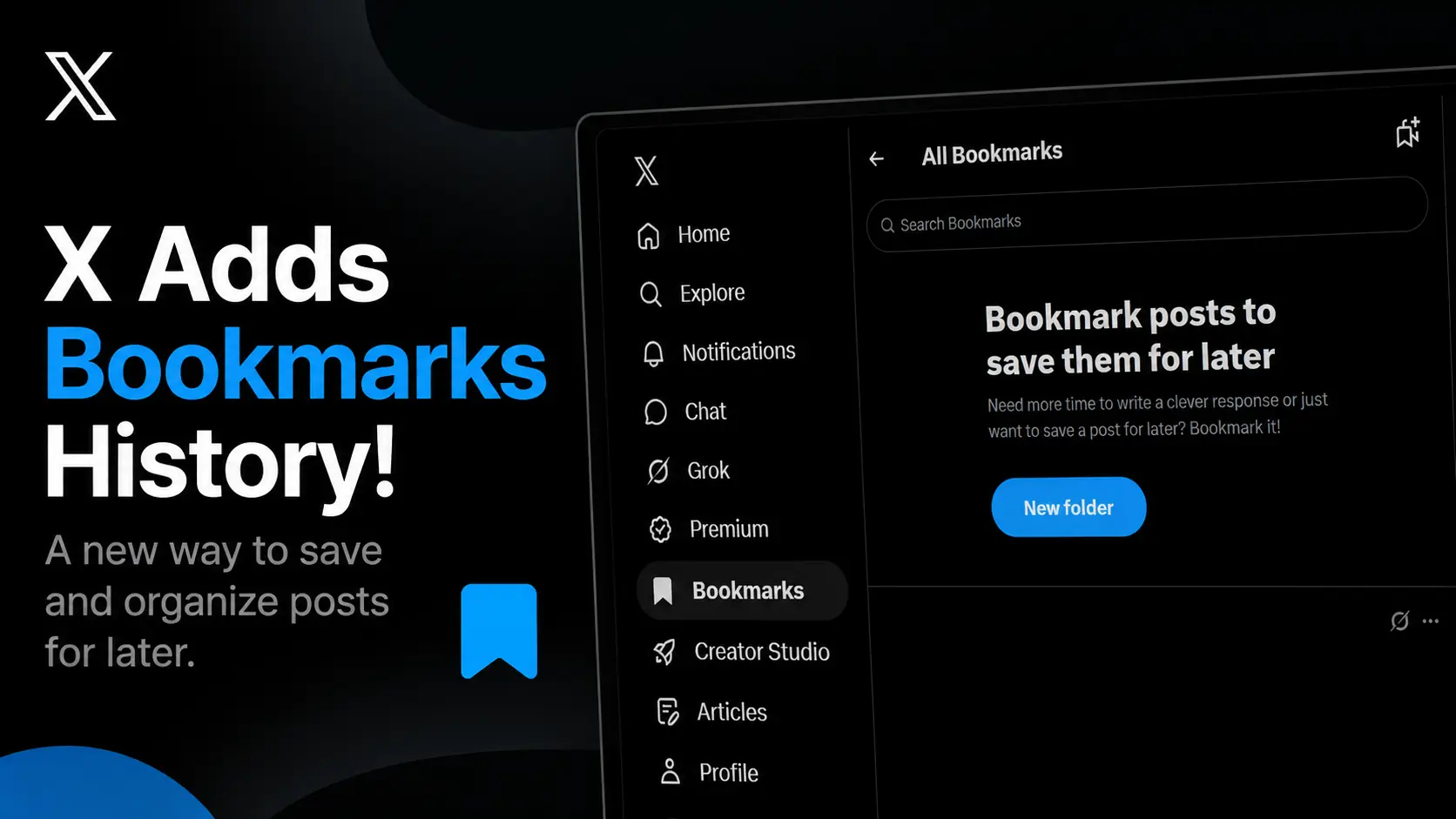
X App Bookmarks Quick Cheat Sheet
- The Big Update: In May 2026, X began moving Bookmarks into a new private “History” tab on iOS.
- Mobile Users: Depending on your device and update version, tap your profile picture or find the new “History” icon to access your saved posts.
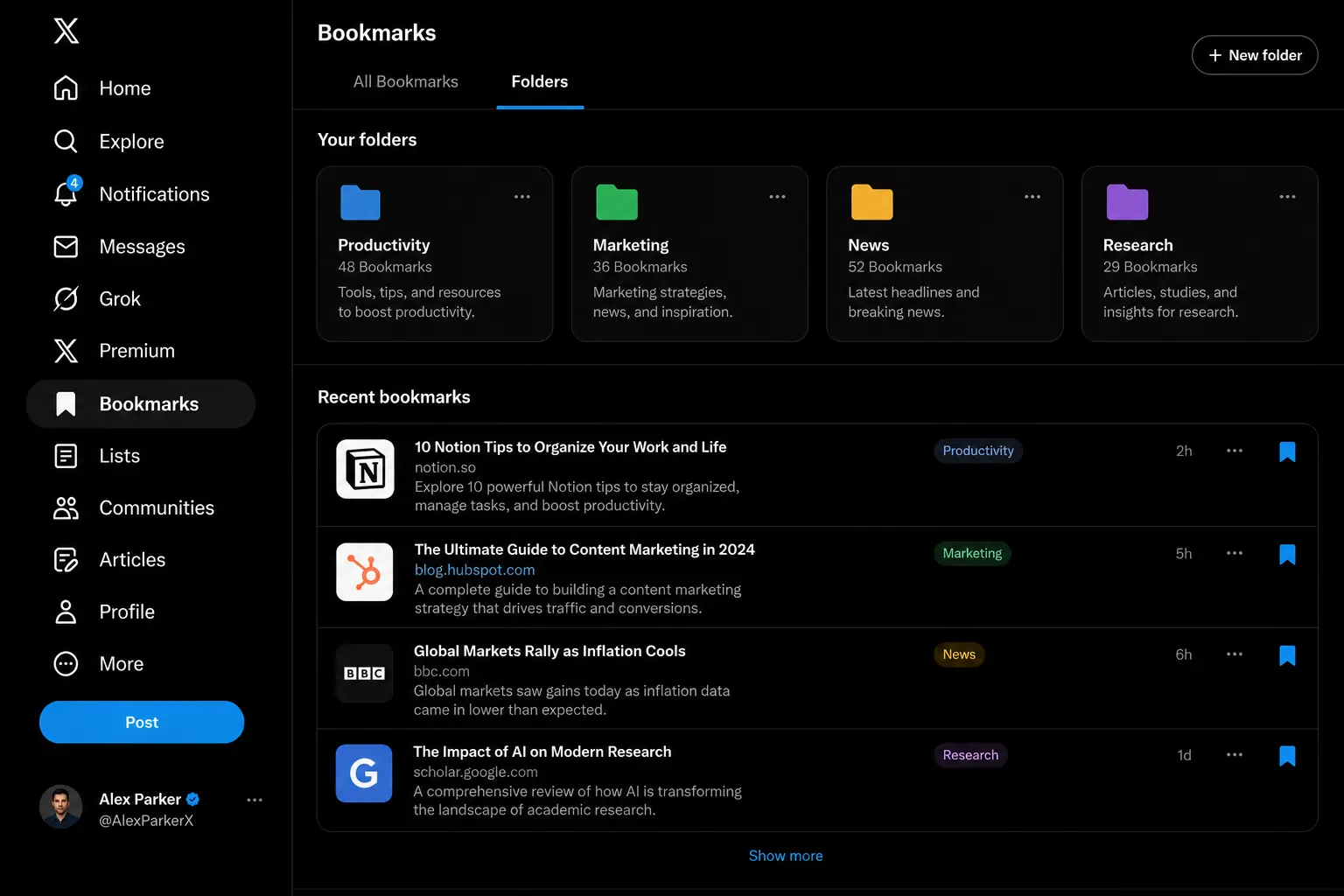
- Desktop Web: Click the standard “Bookmarks” option located directly on the left-hand navigation sidebar.
- Troubleshooting: If you are dealing with X bookmarks not showing, you likely need to clear your app cache or log in via a desktop browser.
Picture this. You are waiting in line for coffee, scrolling through X, and you spot an incredibly valuable thread about productivity hacks. You know you don’t have time to read it right now. So, you hit that little flag icon.
You grab your latte, get to your desk, and open your phone to read the thread. But when you look for it, it’s gone. You tap your profile, you swipe around the menus, and nothing.
If you are frantically searching for the x app bookmarks location 2026 update, take a deep breath. You are not alone. Social media platforms are constantly evolving, and X is notorious for shifting its interface around when we least expect it.
Recently, millions of users woke up to realize that their saved tweets disappeared. If you are trying to figure out where are bookmarks on x twitter app, or why your X bookmarks not showing has become a daily frustration, we need to have a chat about the newest platform changes. We are going to walk through exactly how to access bookmarks on x app and web, along with a bulletproof troubleshooting routine to recover your missing content.
The Great Layout Shift: Where Are Bookmarks on X Twitter App?
Let’s get straight to the biggest change that caught everyone off guard. In mid-2026, X fundamentally changed how users store and retrieve their private content.
For years, the platform had a dedicated, standalone bookmarks button tucked away in the side menu. But as X expanded to include longer videos and full-length articles, that old system became cluttered. To clean things up, Nikita Bier, X’s head of product, announced a brand-new hub for iOS users.
This new private hub is called the “History” tab. X has replaced the old bookmarks tab with this new history tab, which now houses your bookmarks, likes, long videos, and articles all in one place. The goal was to create a centralized spot for catching up on long-form content because the main timeline simply moves too fast.
So, depending on the device you hold in your hand, finding your saved posts requires a slightly different approach.
How to access bookmarks on iOS (The 2026 Update)
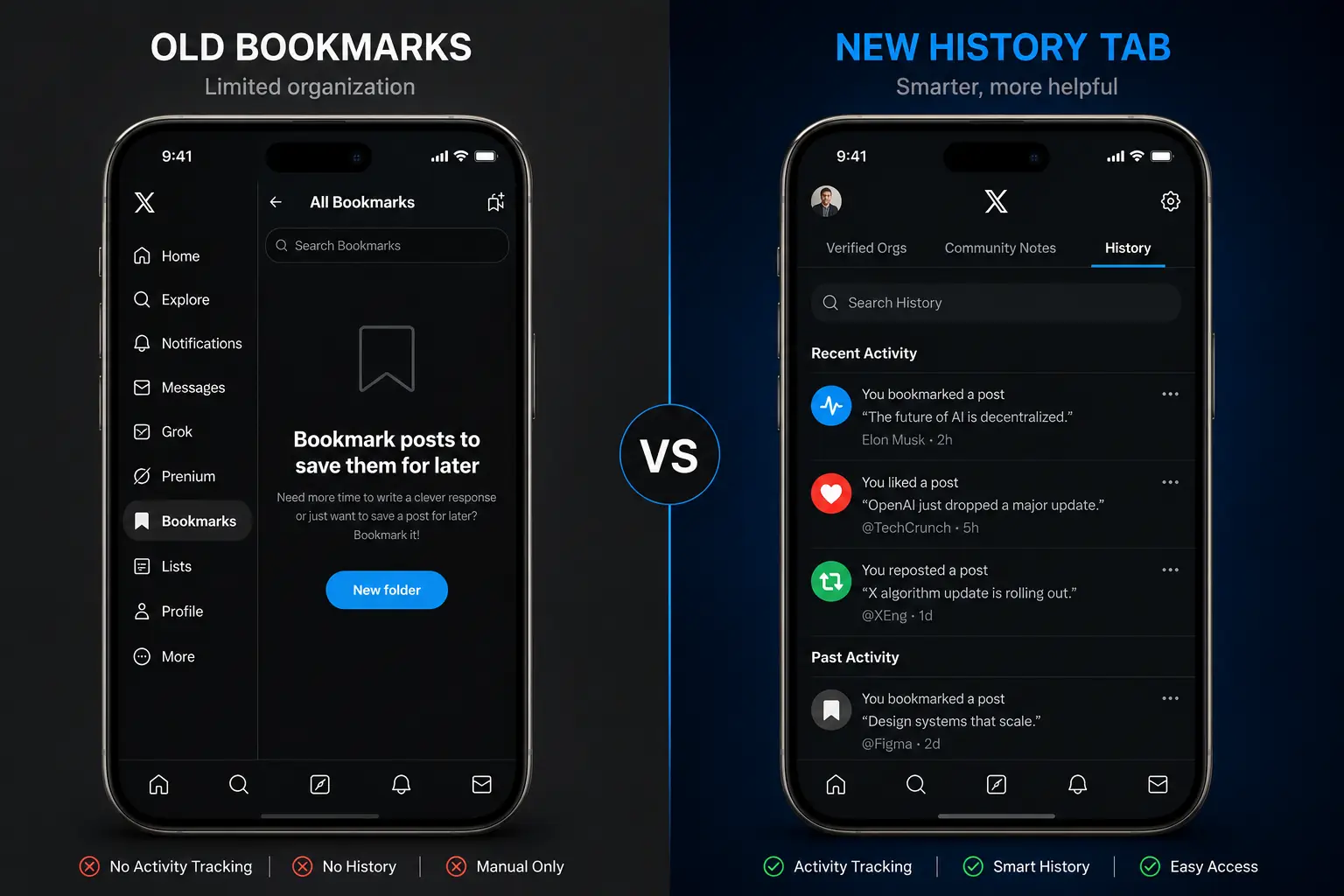
If you are using an iPhone and your app is fully updated, you are likely part of the new rollout.
- Open the X app and look at your main navigation areas.
- Locate the new “History” tab that has been integrated into the interface.
- Tap this tab to view a private hub containing everything you have engaged with.
- From here, you can seamlessly filter through your Bookmarks, Likes, and Articles.
How to access bookmarks on Android and Older Versions
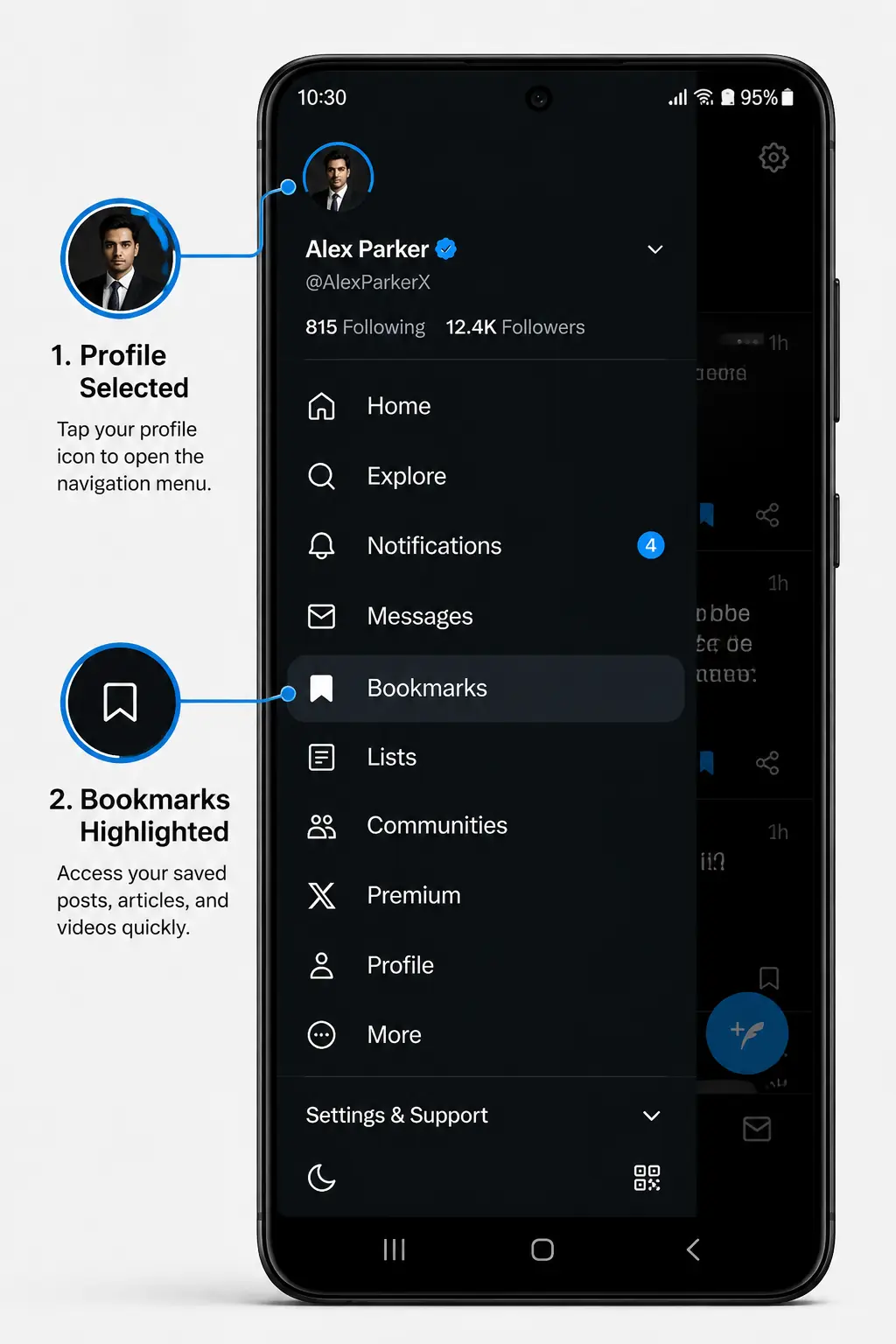
If you haven’t received the History tab update yet, your layout will look a bit more traditional.
- Open the X app on your mobile device.
- Tap your profile picture icon located in the top-left corner of the screen.
- This will slide out the side navigation menu.
- Tap the “Bookmarks” section to view all the posts you have saved chronologically.
How to access bookmarks on Desktop Web
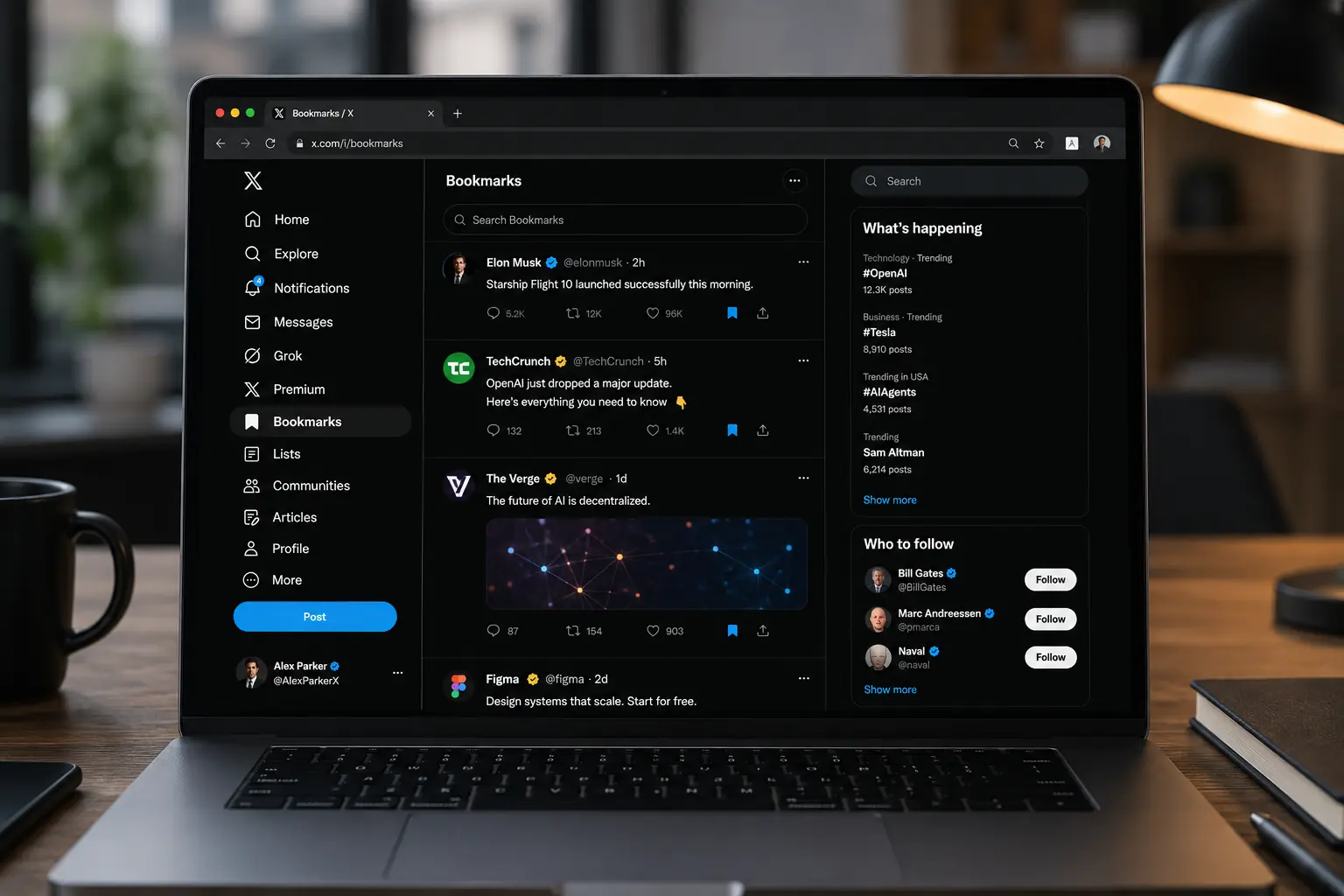
The desktop browser version of X usually remains much more stable than the mobile app.
- Open X in your computer’s web browser and log in.
- Look at the static navigation menu on the left-hand side of your screen.
- Click directly on the “Bookmarks” option.
- If your menu is collapsed, you might need to click “More” first, and then select “Bookmarks”.
Once you find them, you might want to start organizing them. Since 2023, X Premium subscribers have had the ability to create dedicated bookmark folders. This premium feature transforms your saved list from a chaotic, scrolling mess into a highly organized swipe file of resources.
The Fix: Why Are X Bookmarks Not Showing?
Knowing the x app bookmarks location 2026 layout is only half the battle. What happens when you navigate to the right tab, but your saved posts simply aren’t there?
The issue of x bookmarks not showing is a highly documented glitch that frequently pops up on community forums like Reddit. Users frequently complain about getting stuck in “read-only” modes, or finding that their bookmarks have seemingly vanished into thin air.
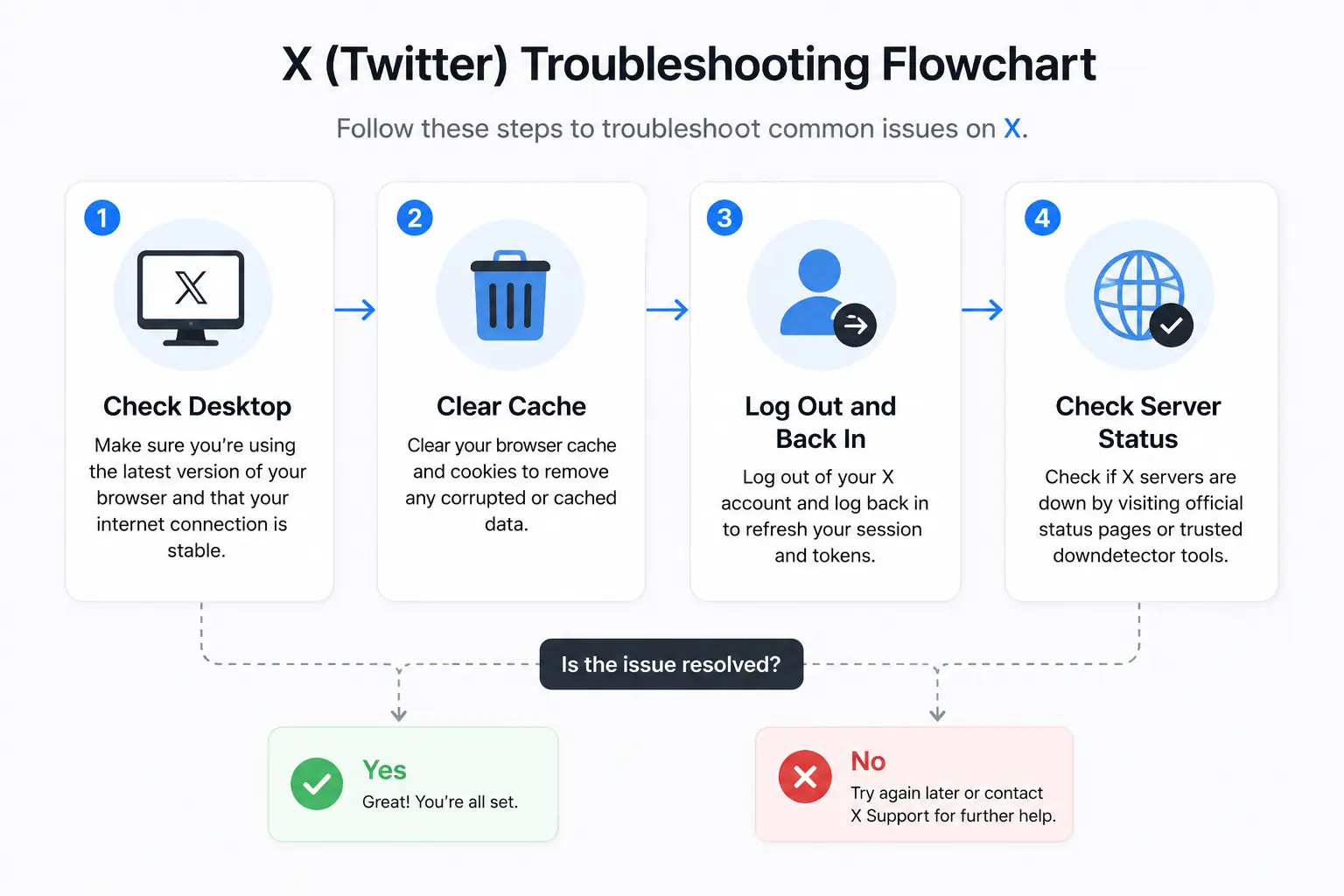
Most of the time, your bookmarks are not permanently deleted. They are just temporarily hidden behind a wall of corrupted data or a network synchronization error. Here is the ultimate step-by-step troubleshooting guide to get them back.
Step 1: The Desktop Detour
Before you panic or start deleting apps, you need to verify if the issue is tied to your specific phone or your actual X account.
- Put your phone down and open a web browser on your laptop or desktop.
- Log into your X account and click “Bookmarks” on the left-hand menu.
- If your bookmarks appear here on the desktop version, then your saved tweets are safe.
- This confirms that the problem is exclusively a glitch with your mobile app, which is very common.
Step 2: Clear Your Twitter Cache
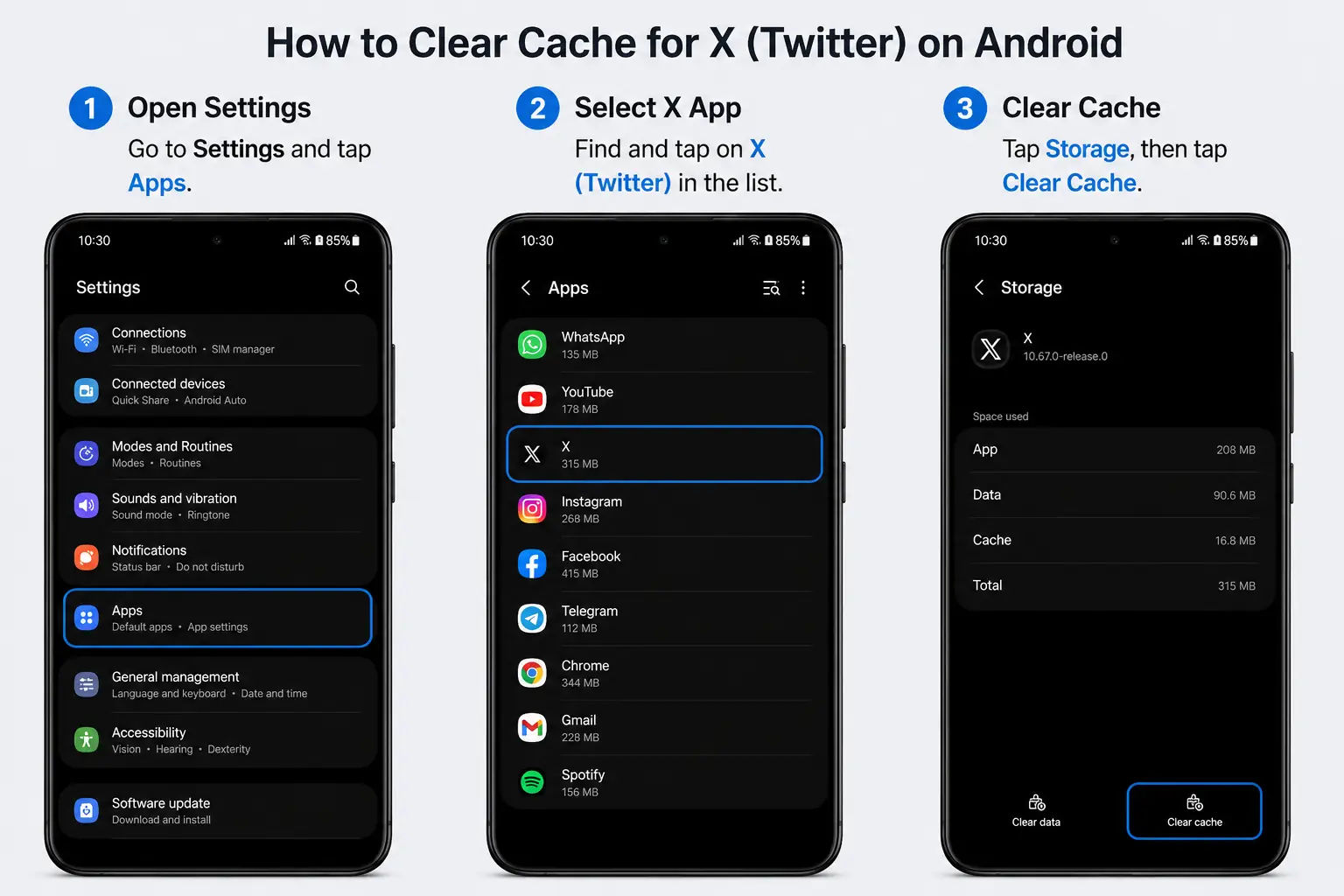
Over time, your phone stores temporary background files to make the X app load faster. This is called cache data. When these temporary files become corrupted, they can easily cause features like bookmarks to glitch or disappear completely. Clearing this out is often the magic bullet.
- On Android: Open your phone’s Settings menu. Navigate to Apps, then find Twitter (or X). Tap on Storage, and finally, hit “Clear Cache”. Be careful not to hit “Clear Data” unless you want to completely log yourself out of everything.
- On iOS: Apple does not offer a simple “clear cache” button for most apps. To reset your cached data, you will need to completely uninstall the X app from your iPhone and then reinstall it from the App Store.
Step 3: The Classic Re-Login Method
It sounds almost too simple to work, but logging out and logging back in is a tried-and-true tech support classic.
- Navigate to your X settings and select “Log out”.
- Force close the X application entirely so it is not running in the background.
- Reopen the app, enter your credentials, and navigate back to your bookmarks.
- This forces the app to request a fresh ping from X’s servers, which can restore a broken connection to your saved data.
Step 4: Network and Server Outages
Sometimes, the problem isn’t your phone at all. A weak cellular connection can prevent a bookmarking action from being properly processed. You might think you saved a post, but the server never received the memo.
Additionally, X occasionally experiences widespread server outages that disrupt background features before they affect the main timeline. If you have tried all the steps above, check the official @TwitterSupport account or a status-checking website to see if the platform is undergoing maintenance. If multiple users on Reddit are complaining about the exact same issue on the same day, you just have to wait it out.
Frequently Asked Questions (FAQ)
1. Are my bookmarks on X public or private?
Unlike your “Likes” which used to be public, your bookmarks are completely private. Other users cannot see what you have saved, and no notification is sent to the original creator when you bookmark their content. It is entirely for your own personal reference.
2. Where is the x app bookmarks location 2026 on my iPhone?
In May 2026, X rolled out a new “History” tab for iOS users. This new private hub replaces the old bookmarks tab and includes your saved posts, likes, long-form videos, and articles in one unified space.
3. Why are my X bookmarks not showing up on my phone but they show on my computer?
This is a classic synchronization error caused by a corrupted mobile app cache. To fix this, Android users should go to their settings and clear the app cache, while iPhone users should uninstall and reinstall the X application.
4. Can I organize my bookmarks into different folders?
Yes, but it comes with a catch. The ability to create specific bookmark folders is restricted to X Premium subscribers. Free accounts can still save posts, but they will all go into one massive, chronological list.
5. Is there a way to search through my saved bookmarks?
Yes. X features a native search bar at the very top of your Bookmarks page. You can type in specific keywords, phrases, or even the usernames of creators to instantly filter and locate an old post you saved.
6. Does bookmarking a post help the creator’s algorithm?
Absolutely. Bookmarks are considered a massive signal of value to the X algorithm. In fact, a bookmark is weighted significantly higher than a standard “Like” when the system determines if a post should be pushed to a wider audience.
Navigating the constant updates of modern social media apps can feel like an endless game of digital hide-and-seek. But by understanding the transition to the new History hub, and keeping a few cache-clearing tricks up your sleeve, you never have to lose a valuable post again.
Your bookmarks are the ultimate private library of your interests, inspirations, and daily learning. Keep them organized, keep your app updated, and happy scrolling!