
Knowing how to make a Facebook post shareable can help you reach a wider audience beyond your friends and followers. Whether you’re sharing personal updates, promoting a business, or spreading an important message, adjusting your post’s privacy settings can make a real difference. Facebook often limits who can see your posts based on their audience settings, so a post shared with friends may not reach everyone you want. In this easy guide, you’ll learn how to change your Facebook post settings to allow sharing and make your content visible to a broader audience while keeping control over your privacy.
Create a Shareable Post on Facebook
You can share a new post with others, or if you have already published it, you can go back and share it selectively. There are two options to do this. Let’s continue with the simplest way.
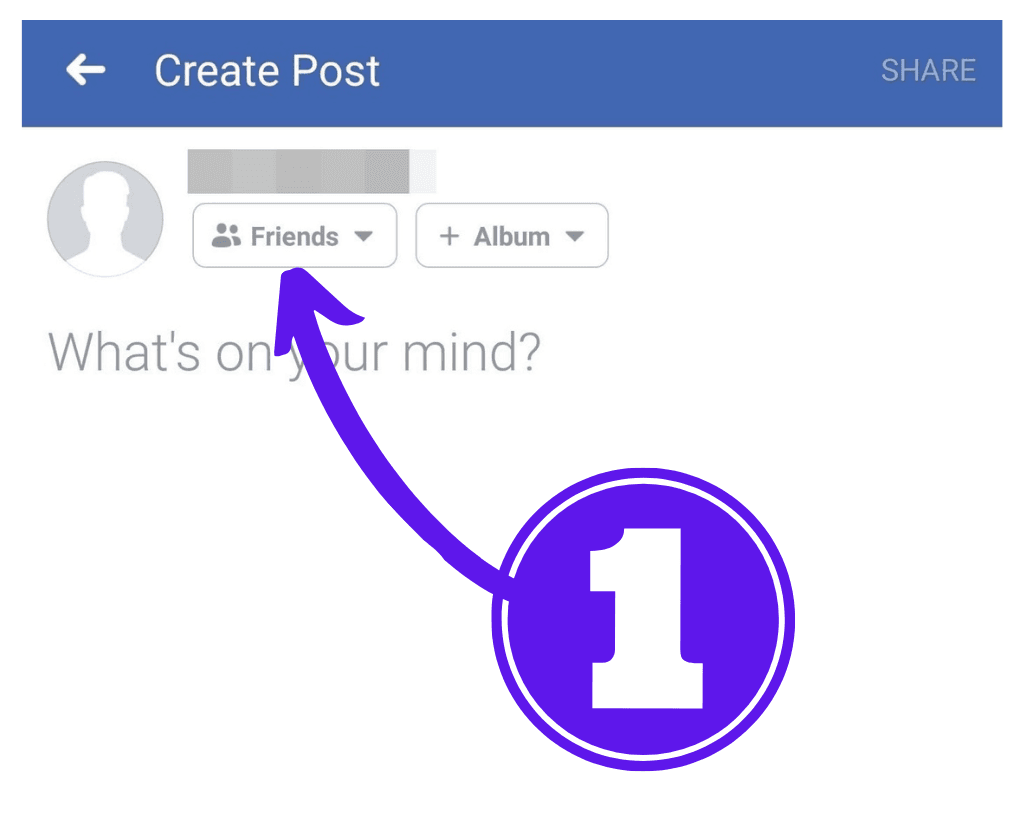
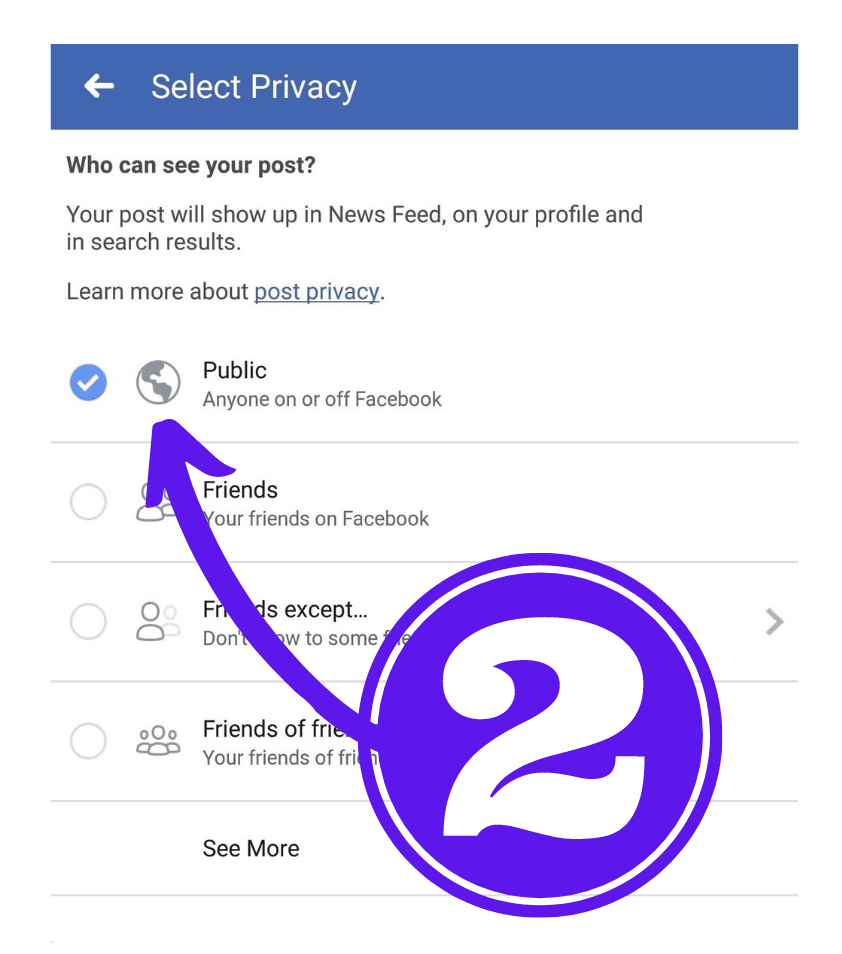
First, open the Facebook app and click the “What’s on your mind?” text box below your friend’s name. The first one with the label “Friends” the second one with the title “Album.” the first box, and choose “Public.” Enter the message that you want to share and select “Share.” This also ensures that they will share the link with anybody to get a decent popularity boost.
Make an Older Post More Shareable on Facebook
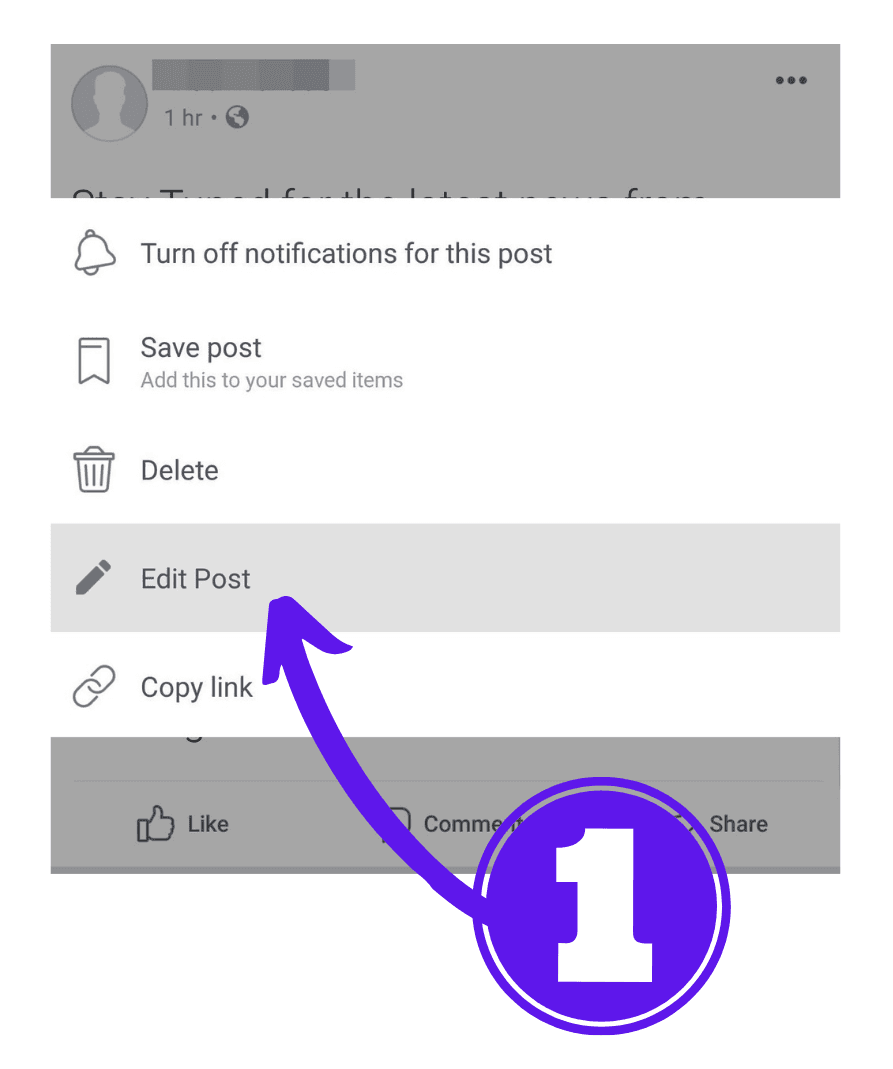
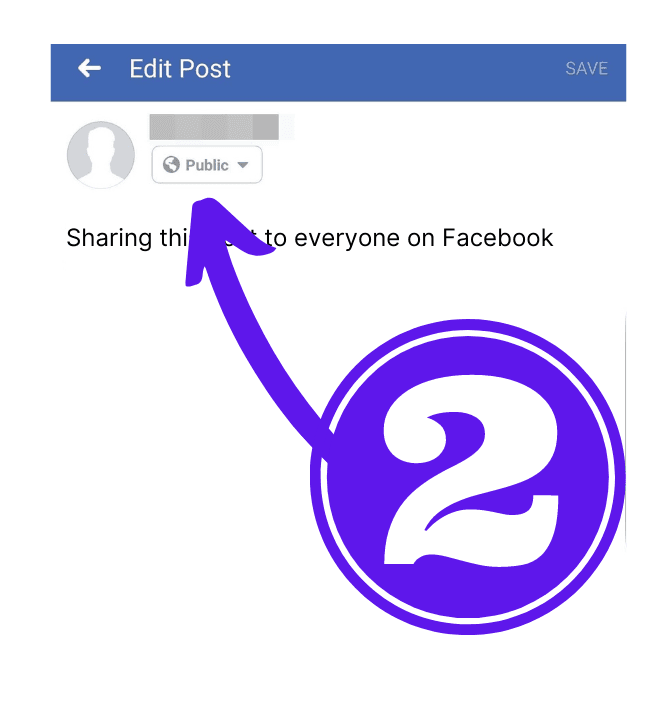
Your post can now be visible to people beyond your Facebook friends, and others may be able to share it. Keep in mind that changing the audience does not guarantee that the post will reach a larger audience; its actual reach depends on how people interact with it and how Facebook distributes content.
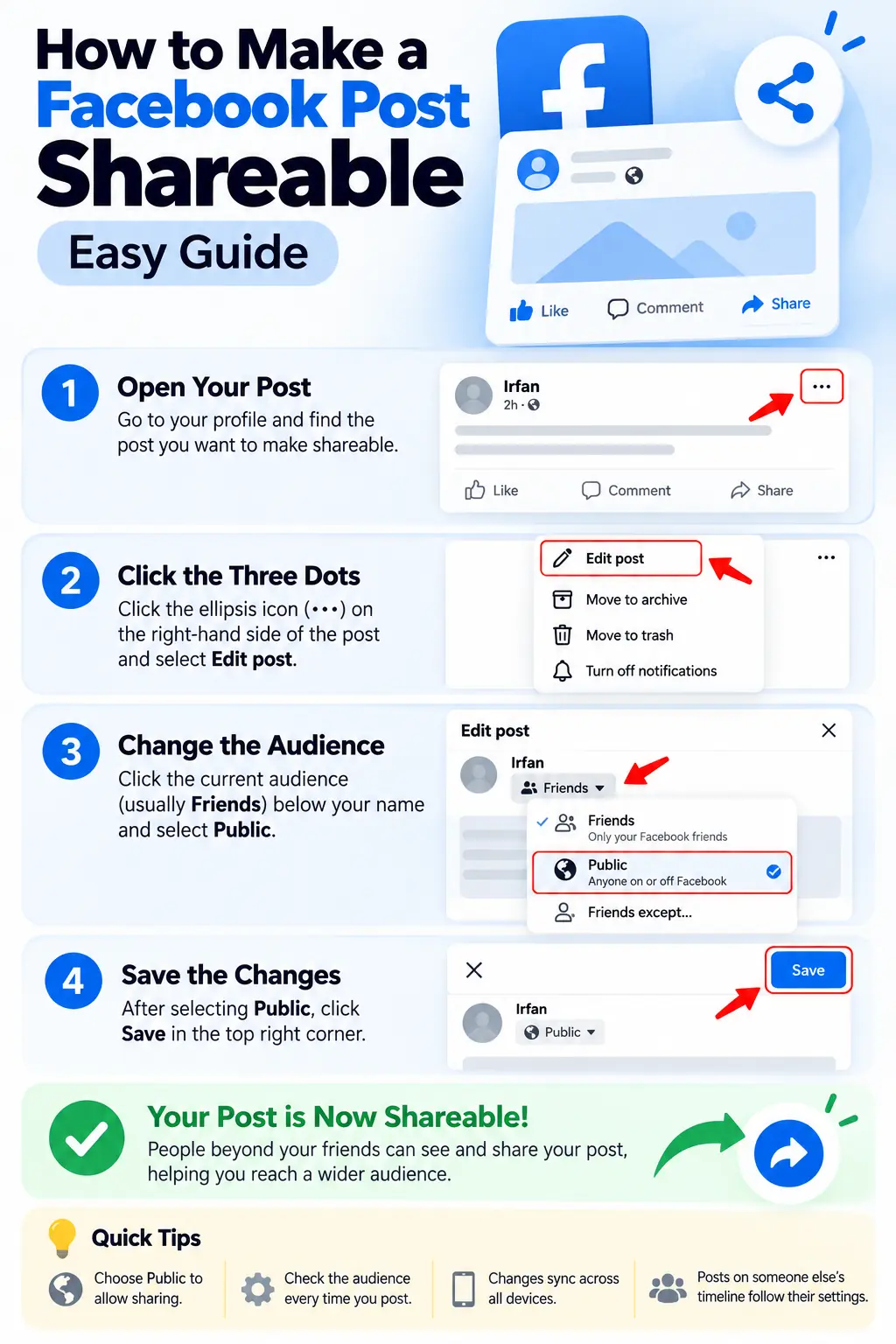
Important Things to Know When Making Facebook Posts Shareable
Before changing your post’s audience, it’s worth understanding how Facebook privacy settings work.
1. Some Facebook activity is already public
Not everything you do on Facebook is limited to your friends. For example, comments or posts you make in public groups or on public Pages may be visible to people outside your friends list, depending on the settings of that space.
Before commenting or posting publicly, consider whether you’re comfortable with others seeing your contribution. You can learn more in Facebook’s official explanation of public information.
2. Your post’s audience and your future posts are separate settings
Changing an existing post to Public changes the audience for that particular post. It does not necessarily make all your previous posts public.
However, when you create a new post, Facebook may use the audience you selected most recently as the default for your next post. Always check the audience selector before publishing if you want to keep certain updates private.
For example, you might choose Public for a business announcement but Friends for a personal family photo.
3. Audience settings can sync across devices
Your Facebook account settings are generally associated with your account, not just one device. If you change a post’s audience on your computer, that change should also be reflected when you view the same post in the Facebook mobile app.
You don’t normally need to repeat the change on every device. If the update doesn’t appear immediately, refresh the page or reopen the post and check its audience icon.
4. Public posts may appear in more places
When you set a post to Public, people who aren’t on your friends list may be able to view it. Depending on Facebook’s features and distribution systems, the post may also be eligible to appear in places such as feeds, your profile, and search results.
Public visibility does not guarantee that your post will appear in every person’s feed or in external search engines. It simply allows a broader audience to access the post under Facebook’s applicable rules.
5. Posts on someone else’s timeline follow their settings
If you publish something on another person’s profile or timeline, you may not control the full audience. The visibility of that post can depend on the other person’s privacy settings and Facebook’s rules.
If you want to share a message with a wider audience, publishing it on your own profile or Page may give you more control over its audience.
6. Public means more visibility, not unlimited control
Making a post Public allows people beyond your friends to see it, but other settings and restrictions may still apply. Facebook features, group rules, account restrictions, and the type of content can affect who can view or share a post.
Remember that public content may be copied, screenshotted, or shared beyond your intended audience. Avoid including private details, sensitive personal information, or anything you would not want others to see.
7. Facebook Pages and personal profiles work differently
If you’re posting from a Facebook Page for a business, organization, or public brand, posts are generally intended for a wider audience. Personal profiles have audience controls that let you choose between options such as Friends and Public.
If you’re trying to promote a product, website, or business, consider whether a Facebook Page is more suitable than relying only on your personal profile.
What If People Still Can’t Share Your Facebook Post?
If your post is Public but other people still cannot share it, check the following:
- Verify the audience: Make sure the post itself is set to Public, rather than just your overall profile.
- Check where you posted: Posts in groups, on other people’s timelines, or in restricted spaces may follow additional rules.
- Review the content: Some content or account restrictions may limit sharing.
- Refresh Facebook: Reopen the post or check it from another device to confirm that the audience change was saved.
- Check the share button: Ask a trusted person to view the post and see whether the Share option is available.
Facebook’s interface and privacy controls can change, so the labels may differ slightly between the desktop website and mobile app.
By choosing the right audience for each post, you can make your content easier to discover and share without making every update on your profile public.
Also READ,