Google Disavow File Generator Tool
Backlinks are the foundation of the internet. Since Google’s inception, the PageRank algorithm has used hyperlinks as “votes of confidence.” If a highly authoritative website links to your page, Google assumes your page is also authoritative, and your rankings soar. However, this system created an industry built on manipulation: buying links, building spammy blog networks, and participating in automated link schemes.
In 2012, Google fought back with the Penguin Algorithm Update, which actively penalized websites with manipulative, low-quality backlink profiles. Overnight, businesses lost their entire organic traffic stream. To give webmasters a way to clean up their act and recover from these penalties, Google released the Disavow Tool.
Our free Disavow File Generator allows you to rapidly format massive lists of toxic URLs and domains into the incredibly strict, precise `.txt` syntax required by Google Search Console.
WARNING: Google explicitly states that the Disavow Tool is an advanced feature. If used incorrectly (e.g., disavowing high-quality, natural backlinks), you can permanently destroy your website’s organic traffic. Proceed with extreme caution.
What Exactly is a Disavow File?
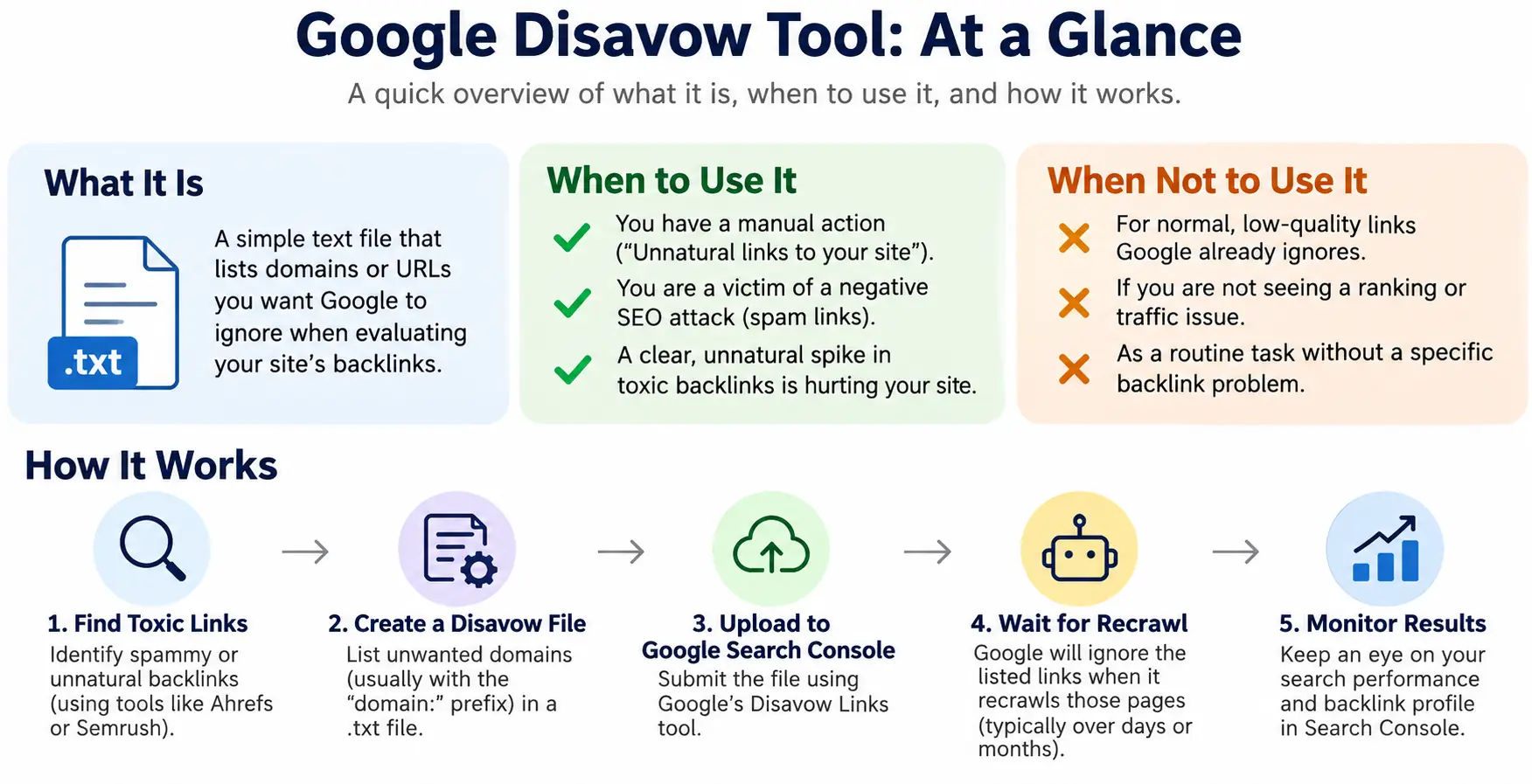
A Disavow file is a simple, UTF-8 encoded text document (.txt) that you upload directly to a hidden section of Google Search Console. It contains a list of domains and URLs.
By uploading this file, you are legally telling Google: “I do not vouch for these links. I cannot get the webmasters to remove them. Please mathematically ignore these links when calculating my PageRank.” Google’s algorithm will then effectively apply an invisible `rel=”nofollow”` tag to every link originating from those domains, severing the connection between their toxicity and your website.
When Should You Actually Use the Disavow Tool?
In modern SEO (2026 and beyond), the rules surrounding the Disavow tool have changed significantly due to the evolution of Google’s AI, specifically SpamBrain.
1. You Have a “Manual Action” (Yes, Disavow immediately)
If you log into Google Search Console, navigate to the “Security & Manual Actions” tab, and see a red penalty for “Unnatural links to your site,” a human reviewer at Google has penalized your domain. You must use the Disavow tool. You must compile a list of every unnatural link pointing to your site, format it using our generator, upload it, and then submit a Reconsideration Request apologizing and explaining your cleanup efforts.
2. You are the Victim of a Negative SEO Attack (Yes, Disavow)
A Negative SEO attack occurs when a malicious competitor buys thousands of toxic, pornographic, or illegal backlinks and points them at your website in an attempt to trigger a Google penalty against you. If you notice a sudden spike of 10,000 links from Russian `.ru` domains or scraped coupon sites with exact-match anchor text, you should preemptively disavow them to protect your domain’s integrity.
3. Algorithmic Filtering (Usually NO)
Google’s modern SpamBrain AI is incredibly smart. If an automated scraper site links to you, Google doesn’t penalize you; it simply ignores the link. The math evaluates to zero. Disavowing links that Google is already ignoring is a waste of your time. You should only use the tool if you see a corresponding, massive drop in traffic that correlates exactly with a spike in toxic links.
How to Identify Toxic Backlinks
Before you can use this generator, you need to know which links are hurting you. You cannot rely on Google Search Console alone, as it only shows a fraction of your link profile. You must use third-party SEO tools like Ahrefs, Semrush, or Moz.
- High Spam Score: Look for domains with a Moz Spam Score over 60%, or a high Ahrefs Toxicity rating.
- Irrelevant Foreign TLDs: If you run a local plumbing business in Ohio, and you have 500 links from `.cn` (China) and `.cc` (Cocos Islands) domains, those are likely spam.
- Over-Optimized Anchor Text: If hundreds of links from low-quality blogs all use the exact phrase “best cheap plumber columbus ohio” as the clickable text, Google views this as obvious manipulation.
Reviewing your website’s keyword usage is also important when evaluating SEO performance. Try our Keyword Density Checker to analyze keyword frequency and identify overused terms in your content.
- Zero Traffic Domains: If the domain linking to you ranks for zero keywords and gets zero monthly organic traffic, its links are worthless and potentially toxic.
Before preparing a disavow file, you can organize and inspect suspicious backlink sources using our Bulk URL Opener, which lets you open multiple website URLs in separate browser tabs for manual review.
The Strict Syntax of a Disavow File
Google’s parser for the Disavow file is notoriously unforgiving. If you format the text incorrectly, Google will reject the entire file. Our generator handles this formatting for you automatically.
Domain vs. URL Disavow
There are two ways to disavow a link:
- Disavowing an Individual URL: This tells Google to ignore a link from one specific page (e.g.,
http://spam.com/bad-post.html), but allows other links fromspam.comto pass equity. You should almost never use this method. If a site is spammy enough to host one toxic link, the entire domain is likely toxic. - Disavowing a Root Domain: This is the recommended method. It tells Google to ignore any link, from any page, subfolder, or subdomain associated with that website.
To disavow a domain, you MUST use the domain: prefix. You must also strip the http://, https://, and www. from the URL. For example, to block https://www.spamsite.com, the file must say exactly:domain:spamsite.com
Our tool uses advanced JavaScript Regex to automatically clean messy lists. You can paste a raw list of 500 messy URLs into the “Domain List” box, and our tool will extract the root domains, strip the protocols, and apply the domain: prefix perfectly.
If you manage multiple technical SEO tasks alongside backlink cleanup, our .htaccess Generator can help prepare Apache configuration snippets for redirects and URL rewriting.
Adding Comments
Google allows you to add comments to your file for your own organizational purposes (or to prove to a manual reviewer that you are tracking your cleanup efforts). Comments must begin with a hash symbol (#). Our tool allows you to add a global comment at the top of your generated file.
How to Submit Your File to Google Search Console
Because of the dangers associated with the tool, Google hides it. You won’t find it in the standard left-hand navigation menu of Search Console.
- Use our tool above to generate your list and click Download .txt.
- Ensure you are logged into the Google account that has “Owner” permissions for your property in GSC.
- Navigate to the hidden Disavow Links tool URL:
https://search.google.com/search-console/disavow-links. - Select your web property from the dropdown menu.
- Click the “Upload Disavow List” button and select the
.txtfile you just generated.
After submitting your disavow file, monitor your website’s search visibility and organic performance through Google Search Console. You can also use our SERP Simulator to preview how your search titles and descriptions may appear in Google results.
The Crawling Timeline (Patience is Required)
Uploading the file does not instantly fix your rankings. Google does not instantly recalculate the math of the internet. The disavow directive only triggers when Googlebot recrawls the specific page where the toxic link lives.
If the toxic link is on a highly active news site, Google might recrawl it in a day. If the toxic link is buried on a dead, low-quality forum profile, it might take Googlebot 3 to 6 months to revisit that URL and apply the disavow tag. Recovery from a link penalty is a slow, gradual process.
Updating an Existing Disavow File
You can only have one active disavow file per Google Search Console property. If you upload a new file, it completely overwrites and deletes the old file.
When reviewing backlink URLs during a website migration, our 301 Redirect Generator can help create redirect rules for old URLs that need to point to their new destinations.
Therefore, if you did a disavow audit in January, and you want to disavow more links in July, you must download your January file from Google, add the new July links to the bottom of that list, and re-upload the combined master list. If you just upload a file with the new July links, Google will restore all the toxic links from January!
Frequently Asked Questions (FAQ)
Will disavowing links improve my rankings?
Can I undo a Disavow?
Is there a file size limit for the Disavow upload?
domain:. Our generator’s domain tool drastically condenses list sizes.Should I try to email webmasters to remove the links first?
Explore More Free SEO Tools
Analyze backlinks, manage website URLs, and simplify technical SEO tasks with these free online tools.
-
Bulk URL Opener
Open multiple backlink sources and website URLs in separate browser tabs for faster manual review.
-
Keyword Density Checker
Analyze keyword frequency and identify overused terms in your website content.
-
SERP Simulator
Preview how your page titles and meta descriptions may appear in Google search results.
-
301 Redirect Generator
Generate redirect rules for website migrations and changes to existing URLs.
-
.htaccess Generator
Create Apache configuration snippets for redirects and URL rewriting.
Further Reading on Backlink Audits and Google’s Disavow Tool
1. Google Search Console – Disavow Links Tool
Google’s official guide to identifying unnatural backlinks, preparing a disavow file, and submitting it safely. Search Console Help
2. Google Search Central – Spam Policies
Understand Google’s link spam policies, including paid links, link schemes, automated link building, and manipulative backlinks. Google for Developers
3. Google Search Console – Manual Actions Report
Learn how to identify manual penalties, investigate unnatural links, and submit a reconsideration request after resolving violations. Search Console Help
Important note: Google’s documentation says most websites do not need the Disavow Tool. It should generally be reserved for considerable numbers of spammy or artificial backlinks associated with a manual action or a likely manual action.